Screen Mirroring: How to Connect Your Phone to a TV or Projector
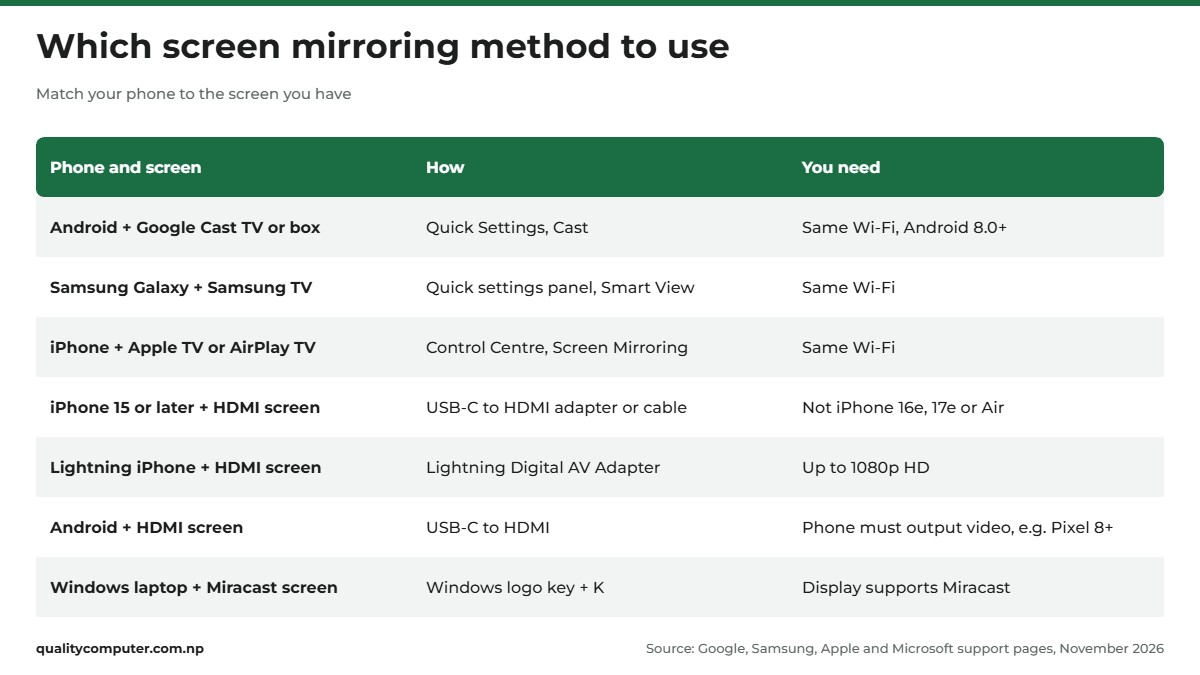
Short answer: Screen mirroring shows your phone's screen on a TV or projector. On Android, swipe down to Quick Settings and tap Cast (Smart View on a Samsung Galaxy); on an iPhone, open Control Centre and tap Screen Mirroring. Both need the phone and the TV on the same Wi-Fi network, and a TV or box that can receive it: Google Cast for Android, a Samsung TV for Smart View, AirPlay for iPhone. If your TV has none of these, use a USB-C or Lightning to HDMI adapter, as long as your phone can send video out through its port.
Shop at Quality Computer
Projectors and HDMI gear for the big screen View all →
What you need first
Screen mirroring puts whatever is on your phone onto a bigger screen: a TV, a projector or a laptop. You can do it over Wi-Fi, or with a cable from the phone's charging port to the screen's HDMI port.
Wireless needs a screen that speaks your phone's language:
- Android phones use Google Cast, which works with Chromecast, Google TV Streamer and TVs that work with Google Cast (Google Cast Help).
- Samsung Galaxy phones also have Smart View, for mirroring to Samsung TVs.
- iPhones use AirPlay, which works with an Apple TV, a Mac or an AirPlay-compatible smart TV.
- Miracast is a Wi-Fi standard found on some TVs, projectors and plug-in dongles. Windows laptops can cast to it.
If your TV supports none of these, plug an Android TV box or streaming stick into its HDMI port (our Android TV box guide explains what to look for; if casting matters, check the box lists Google Cast), or use a cable. Choosing a new screen anyway? Our TV price list and projector guide compare current models.
Mirroring copies everything on your phone, notifications included. An app's own Cast or AirPlay button, in a video app or Photos, sends just that video or photo. For a film, try that first. Mirror when you need the whole screen: slides, a photo album or a game.
Screen mirroring on Android with Google Cast
On a Pixel, the button is in Quick Settings. Other Android phones have a similar one under other names (see below). First connect the phone and the TV (or streaming box) to the same Wi-Fi network. Then, per Pixel Phone Help:
- Swipe down twice from the top of the screen and tap Cast. If the tile isn't there, Google says you can add Cast to Quick Settings.
- If asked, choose your entire screen or a single app, then tap your TV.
- To stop, swipe down and tap Disconnect on the Cast notification.
The same option sits in Settings > Connected devices > Connection preferences > Google Cast. Some of these steps need Android 8.0 or later.
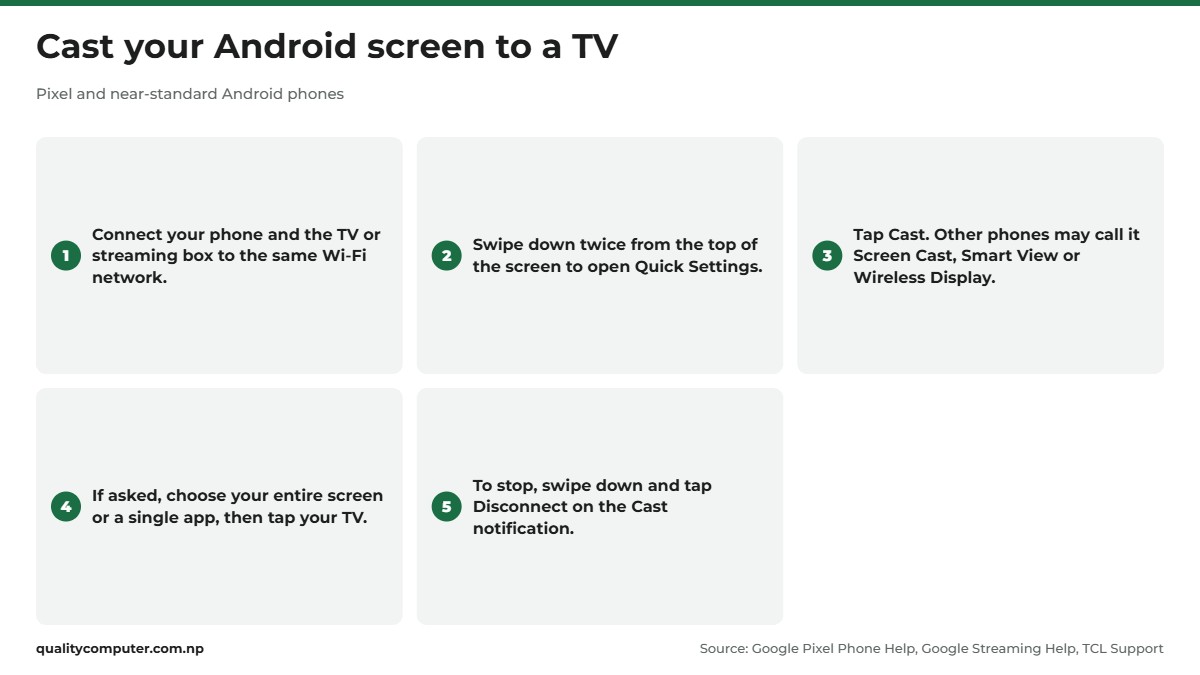
Phone makers rename the button. TCL's help page for its Google TV sets lists Cast, Screen Cast, Smart View, Screen Share and Wireless Display as names you may see. Can't find any? Use the Google Home app (Google Streaming Help). Turn on the microphone permission for Google Play services, as Google asks, then open the app, tap Devices, touch and hold your TV's tile, then tap Cast and Cast my screen (or Cast screen, or Cast one app). To stop, touch and hold the tile again and tap Stop mirroring.
Samsung Galaxy phones: Smart View
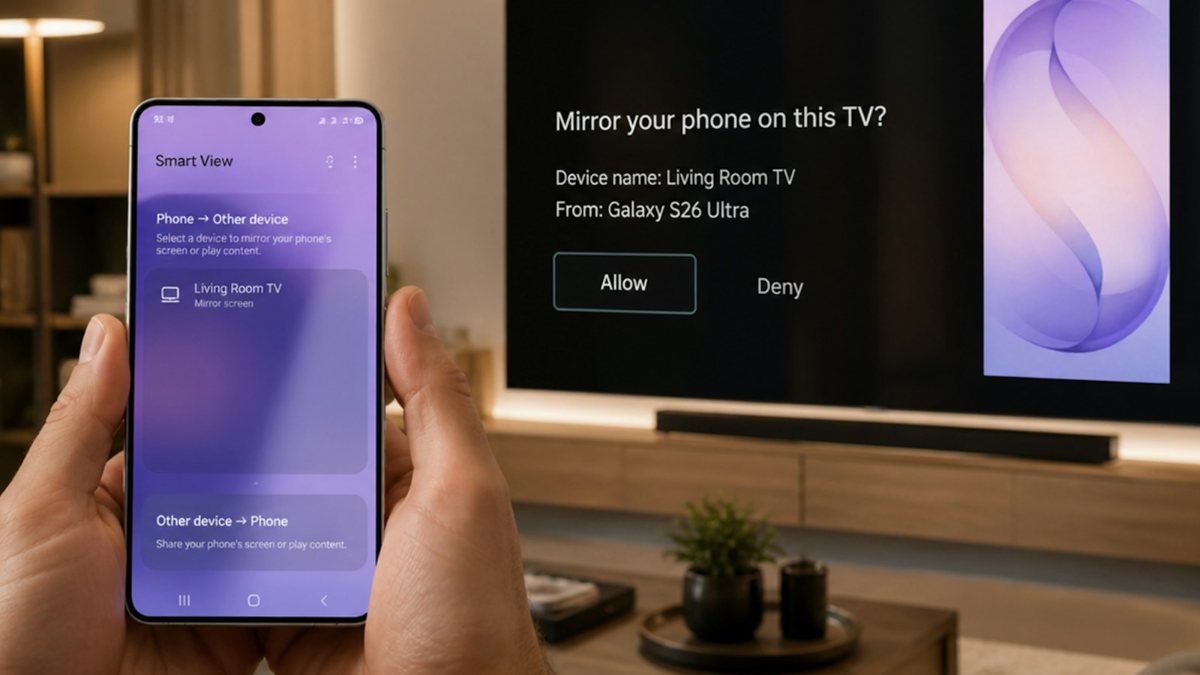
On a Galaxy phone, the button is called Smart View. Samsung's steps for a Samsung TV (Samsung support):
- Turn the TV on and make sure it's on the same Wi-Fi network as your phone.
- Swipe down from the top with two fingers to open the quick settings panel. Swipe across to Smart View and tap it.
- Tap your TV under Available devices. Enter the PIN or allow access if the TV asks.
- When you're done, tap the Smart View icon on your phone, then Disconnect.
If something's off:
- Picture too small? Smart View icon, More options (three dots), Settings, Phone aspect ratio.
- TV not in the list? Tap the refresh symbol to search again (Samsung India).
- Connected but nothing on screen? The phone may need the TV's permission. Restart both and select Allow on the TV.
- Phone screen keeps going dark? Set a longer Screen timeout.
Samsung notes the function may not be supported on every model.
What Miracast is, on Android and iPhone
Miracast is a Wi-Fi Alliance standard that lets one device show its screen on another, across brands. The Wi-Fi Alliance says it works between Wi-Fi devices "even if a Wi-Fi network is not available". Look for it on TV and projector spec sheets, and on wireless display dongles.
Microsoft says you can wirelessly connect a Windows PC to a TV, projector or other display that supports Miracast: turn the display on, press the Windows logo key + K and pick it from the list. With a Miracast dongle, plug it into the display first.
Miracast on Android: the Google and Samsung phone help pages we read don't use the word; they talk about Cast and Smart View. If your screen lists Miracast but not Google Cast, try your phone's Smart View, Screen Cast or Wireless Display button. If the screen doesn't appear, try a Google Cast box or a cable.
Miracast on iPhone: Apple's iPhone help pages cover AirPlay and cables, and none we checked mention Miracast. Plan on AirPlay or a cable.
Screen mirroring an iPhone to a TV with AirPlay
iPhones mirror with AirPlay, to an Apple TV, a Mac or a smart TV with AirPlay built in. Apple's AirPlay page says leading TV makers are building AirPlay into their sets and shows Samsung, LG, Sony and Vizio. Look for the "Works with Apple AirPlay" label in shops and online. Apple's steps (Apple Support):
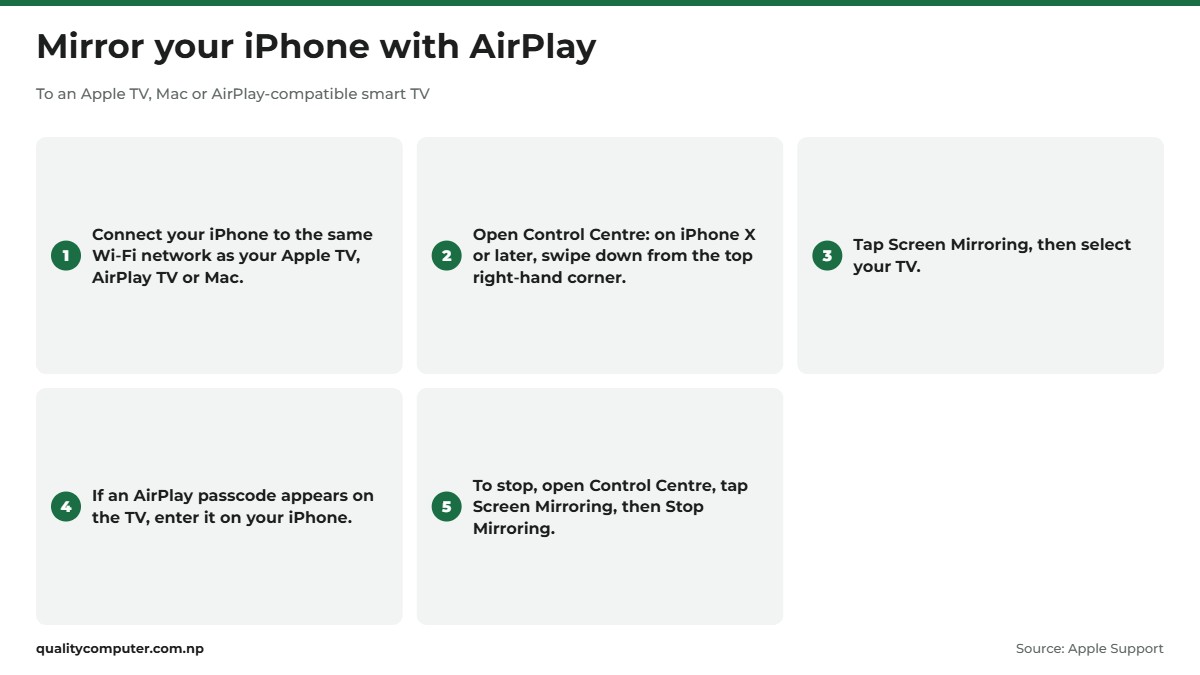
- Connect your iPhone to the same Wi-Fi network as your Apple TV, AirPlay-compatible smart TV or Mac.
- Open Control Centre. On iPhone X or later, swipe down from the top right-hand corner. On older models, swipe up from the bottom edge.
- Tap Screen Mirroring and select your TV.
- If an AirPlay passcode appears on the TV, enter it on your iPhone.
To stop, open Control Centre, tap Screen Mirroring, then Stop Mirroring. Mirroring an iPhone to a Samsung TV with AirPlay works the same way.
Just one video? Use AirPlay to TV from inside the app: tap the AirPlay button (in Photos, tap Share, then AirPlay) and choose your TV. Apple notes that some video apps might not support AirPlay. No AirPlay on the TV? Add an Apple TV, use a cable or try an app (both below).
Connect your phone to a TV with a cable
No casting on the TV or projector? Use a cable or adapter from your phone's port to its HDMI port. Our HDMI vs VGA guide helps if your projector only has VGA.
iPhone
Apple says these iPhones can connect to external displays through USB-C: the iPhone 15 models, iPhone 16 models (except iPhone 16e), iPhone 17 models (except iPhone 17e), iPhone Duo and the iPhone 18 Pro models (Apple Support). The iPhone Air isn't on that list, and its spec sheet doesn't list DisplayPort, so use AirPlay with it. Use a USB-C to HDMI adapter or cable; one that supports HDMI 2.0 can output 4K at 60Hz. The TV mirrors your screen, though a video app with its own second-screen mode can behave differently.
iPhones with a Lightning port need the Lightning Digital AV Adapter, which mirrors your screen over HDMI at up to 1080p HD.
Films, TV shows and some streaming apps need HDCP, a copy-protection system. Play them over a connection without it, such as a VGA adapter, and Apple says an alert asks for an HDCP-compatible device. VGA adapters don't carry sound either (Apple Support).
Android
On Android, a USB-C port doesn't guarantee video. The phone must send a picture out through it. One standard for this is DisplayPort over USB-C, published by VESA as DisplayPort Alt Mode. Dell explains that if a USB-C port doesn't support it, no video data is sent and the screen stays blank.
Support varies. Google lists wired display output for the Pixel 8 and later. Samsung's list for its USB-C to HDMI adapter covers Galaxy S, Note, Z Fold, Z Flip and Tab S models, plus one A-series phone, the A90 5G (Samsung Australia). If your phone isn't on its maker's list, check its spec sheet for DisplayPort or video output before you buy a cable.
To connect, plug the HDMI cable into the TV, select that port as the TV's input (Source), then plug in the phone. Samsung warns that most DRM-protected content can't be shown through its HDMI adapter.
Mirroring your phone to a laptop
- Android to Windows: Microsoft's Phone Link shows your phone's Android apps on your PC. It works on select Samsung, HONOR, OPPO, ASUS, vivo and Xiaomi phones that come with Link to Windows, on Android 10 or later, with both on the same Wi-Fi network (Microsoft Support).
- Windows 11 as a wireless screen: Settings > System > Projecting to this PC, then install Wireless Display from Optional features (version 22H2 or later). Microsoft documents this for projecting from another PC.
- iPhone to a Mac: AirPlay can send your screen to a supported Mac with the same Control Centre button.
- iPhone to Windows: none of the Apple or Microsoft pages we checked offer a built-in way; see the apps below.
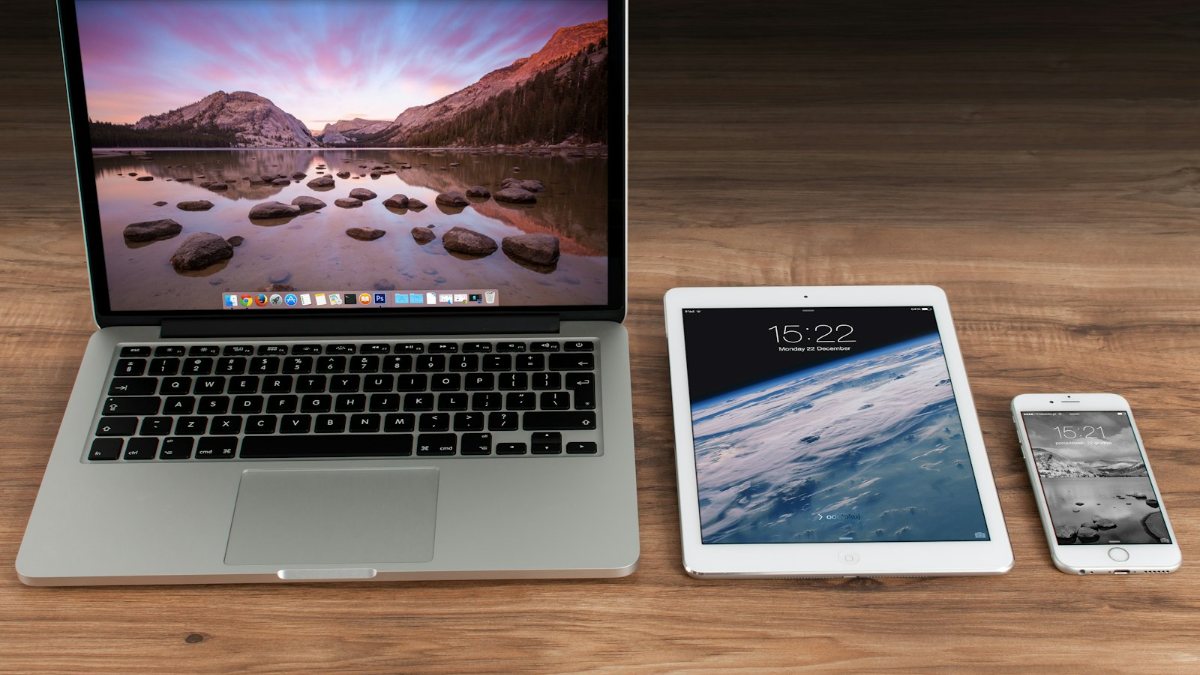
Laptop to TV or projector instead? Use the Windows logo key + K with a Miracast display, or an HDMI cable.
Mirroring apps: AirDroid Cast and LetsView
When the built-in options don't fit your devices, a mirroring app can fill the gap. Here's what the makers of two often-searched apps say. We don't recommend either over the other.
- AirDroid Cast says it shares a screen to a larger display, with apps for Android, iOS, Windows, macOS, the web and Android TV. You connect with a QR code, a 9-digit code or by using it as an AirPlay receiver; USB works only from a phone to a computer. Casting over a remote network isn't available on a free account (AirDroid Cast).
- LetsView, from WangXu Technology, says it shares screens between Windows, Mac, iOS, Android and TV (LetsView). Its Play Store listing asks for all devices on the same Wi-Fi, offers direct, QR code or passkey connection, and calls the app ad-free.
Mind your privacy: a mirroring app sees what's on your screen, which can include OTPs and banking details. AirDroid says content is end-to-end encrypted with AES and its server doesn't store it. LetsView's Google Play data safety section says data is encrypted in transit and not shared with third parties, and that the app may collect location and personal info. These are the developers' own claims. Install from the official store or website only, and close the app when you're done.
When the TV doesn't show up: fixes
Start with the network. These come from Google's casting help, Apple's AirPlay troubleshooting page and the TV makers' guides:
- Same network, same band. Google says the phone and TV should share the same network name (SSID) and band, 2.4 GHz or 5 GHz. If your router shows two names, one per band, use the same one on both.
- No guest networks or hotspots. On guest, hotel or public networks, Google says you may not be able to set up its streaming devices. TCL warns about guest networks and hotspots that block device discovery.
- AP isolation off. A router setting called AP isolation or client isolation can stop devices talking to each other. Google says you may need to turn it off. Our WiFi router guide covers dual-band routers if yours is old.
- Stutter or blur. Google suggests keeping the phone within 4 metres (15 feet) of the TV or streaming device, and that device within 4 metres of the router.
- Google TV missing. TCL says to check the Google Cast app is turned on under the TV's Settings > Apps > See all apps (show system apps).
- AirPlay won't connect. Keep the devices on and near each other, update both and restart them. No sound? Check neither the iPhone nor the TV is muted.
- Cable but no picture. Check the TV's HDMI input. Reconnect the adapter, try another HDMI cable and remove extension cables or converters. Update iOS on an iPhone; on Android, check the phone supports video output.
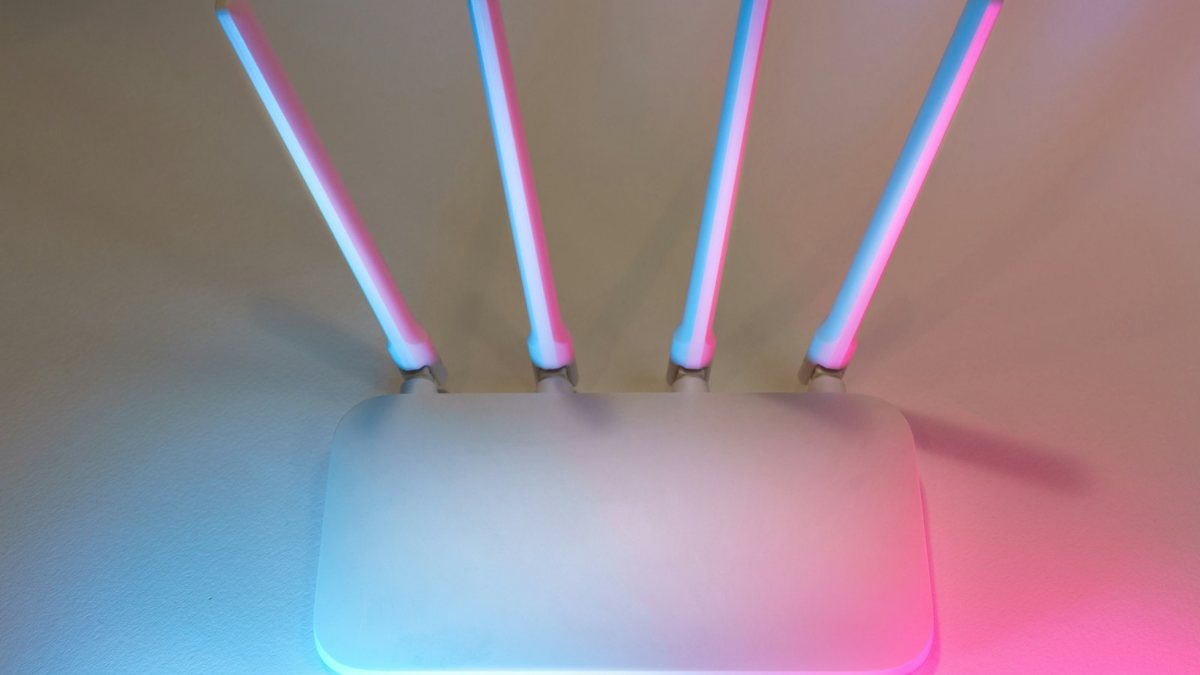
Films won't play while everything else mirrors? It may be the copy protection covered in the cable section. Use the app's own Cast or AirPlay button, or the TV's own app.
Quick verdict
- Android: swipe down twice and tap Cast, or use the Google Home app. Needs Android 8.0 or later.
- Samsung Galaxy to Samsung TV: Smart View in the quick settings panel.
- iPhone: Control Centre, Screen Mirroring, to an Apple TV or AirPlay TV.
- Cast, Smart View and AirPlay need the phone and TV on the same Wi-Fi network.
- Cable: iPhone 15 or later (not the 16e, 17e or Air) uses USB-C to HDMI; older iPhones need the Lightning Digital AV Adapter.
- Android cables work only if the phone outputs video (for example Pixel 8 and later).
TV boxes, projectors and HDMI adapters in our store
If your TV can't receive a cast, an Android TV box or the right HDMI adapter is the simplest fix. For classrooms and offices, a projector with an HDMI port takes a phone or laptop by cable.
| Product | What it is | Our price |
|---|---|---|
| Wanbo WPE01 Mini Pro projector | Mini projector | Rs 19,500 |
| BYINTEK LOVE U4 projector | Home projector | Rs 21,999 |
| Wanbo Cube 2 Pro projector | Compact projector | Rs 29,500 |
| Optoma WHD221 wireless USB-C to HDMI kit | Wireless USB-C to HDMI transmitter and receiver | Rs 12,500 |
| UGREEN USB-C to HDMI cable (1.5m) | USB-C to HDMI cable | Rs 3,199 |
Prices checked on 14 November 2026 on our website.
In our store
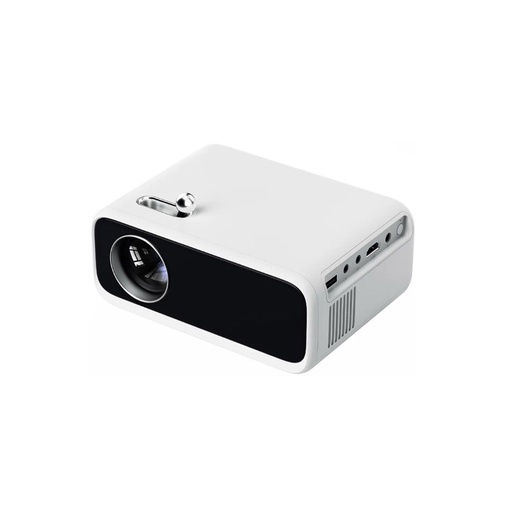
Wanbo WPE01
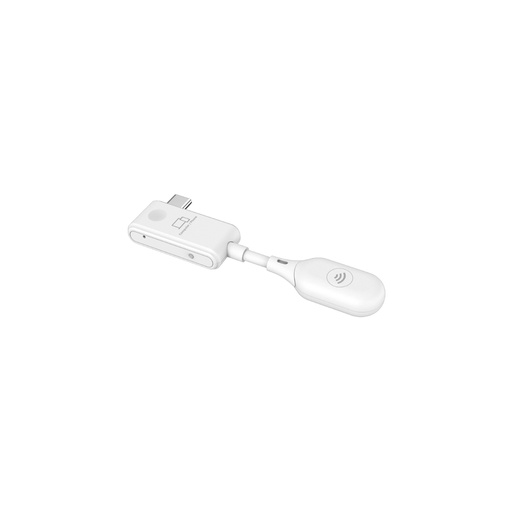
Optoma WHD221
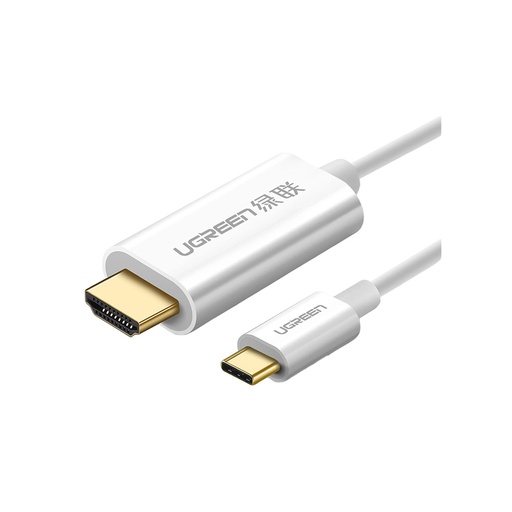
UGREEN USB-C to HDMI
Frequently asked questions
How to connect phone to TV without a cable?
Put the phone and the TV on the same Wi-Fi network. On Android, open Quick Settings and tap Cast (Smart View on a Samsung Galaxy). On an iPhone, open Control Centre, tap Screen Mirroring and pick an Apple TV or AirPlay-compatible TV.
How do I do screen mirroring from iPhone to a Samsung TV?
If the Samsung TV supports AirPlay, connect the iPhone to the same Wi-Fi, open Control Centre, tap Screen Mirroring and select the TV. Enter the passcode if one appears on the TV. If the TV has no AirPlay, use a USB-C to HDMI adapter on an iPhone 15 or later (not the 16e, 17e or iPhone Air), or the Lightning Digital AV Adapter on older iPhones.
Does Miracast work on iPhone?
Apple's iPhone help pages describe AirPlay and wired adapters, and the ones we checked don't mention Miracast. To show an iPhone on a TV, use AirPlay to an Apple TV or AirPlay-compatible TV, or an HDMI adapter.
Can I cast my phone to a TV with a USB-C to HDMI cable?
Only if your phone sends video out through its USB-C port, for example through DisplayPort Alt Mode. Apple's list covers the iPhone 15 and later except the 16e, 17e and iPhone Air, Google lists the Pixel 8 and later, and Samsung lists mainly its Galaxy S, Note, Z and Tab S models. If the port doesn't support video, the screen stays blank.
Is there a free screen mirroring app?
The built-in options cost nothing: Cast on Android, Smart View on Samsung and AirPlay on iPhone. Among third-party apps, LetsView's website invites you to try it free, and AirDroid Cast's free account doesn't include casting over a remote network.
Why is my phone not showing up on the TV?
Check that both are on the same Wi-Fi network name and band, and not on a guest network or hotspot that blocks discovery. Turn off AP isolation on the router if it's on, then restart the phone and the TV.
Why won't some films play when I mirror my phone?
Many films, TV shows and streaming apps use copy protection such as HDCP or DRM, which can block them on some connections and adapters. Use the app's own Cast or AirPlay button, or open the same app on the TV.
Sources
- Project your Pixel phone's screen, Google Pixel Phone Help, checked 13 November 2026
- Cast your Android screen from the Google Home app, Google Streaming Help, checked 13 November 2026
- Improve your Android screen casting experience, Google Streaming Help, checked 13 November 2026
- Google Cast Help, Google, checked 13 November 2026
- Share the screen of your Galaxy phone with Smart View, Samsung Canada
- How to mirror your Galaxy smartphone's screen to your Samsung TV, Samsung India
- Use a Samsung USB-C to HDMI adapter, Samsung Australia
- How to Mirror an Android Phone to a TCL Google TV, TCL Support
- Miracast, Wi-Fi Alliance
- Screen mirroring and projecting to your PC or wireless display, Microsoft Support
- Setting up Apps in the Phone Link, Microsoft Support
- Use AirPlay to stream video or mirror the screen of your iPhone or iPad, Apple Support
- If screen mirroring or streaming isn't working on your AirPlay-compatible device, Apple Support
- AirPlay, Apple
- Charge and connect with the USB-C connector on your iPhone, Apple Support, checked 13 November 2026
- iPhone Air - Technical Specifications, Apple, checked 13 November 2026
- Lightning Digital AV Adapter, Apple Store
- Get help with Apple Digital AV Adapters for iPhone, iPad and iPod touch, Apple Support
- Guide to DisplayPort over USB-C, Dell Support
- AirDroid Cast, AirDroid (developer's own claims)
- LetsView official website, WangXu Technology (developer's own claims)
- LetsView on Google Play (description and data safety), Google Play, checked 13 November 2026