As our digital lives continue to grow, storing and accessing files efficiently has become important for both individuals and businesses. Photos, videos, documents, backups, project files, and other digital data can quickly consume the storage available on laptops, phones, and desktop computers. Cloud storage services are a popular solution, but they are not the only option. A NAS (Network Attached Storage) allows you to create your own centralized storage system that can be accessed by multiple devices over a network.
Whether you want a central place to store family photos, back up your computers, share files with employees, or access your data remotely, a NAS can provide a flexible storage solution. Here, we explain what NAS is, how it works, its benefits and limitations, and what to consider before buying one.
What Is NAS?
NAS stands for Network Attached Storage. It is a dedicated storage device that connects to your local network and allows multiple computers, smartphones, and other devices to store and access files from a central location. Unlike a traditional external hard drive that normally connects directly to one computer through USB, a NAS connects to your network, usually through an Ethernet connection. Once connected, authorized devices on the same network can access the files stored on it.
A NAS generally contains one or more hard drives or SSDs and has its own operating system and hardware designed specifically for managing and sharing data.
How Does a NAS Work?
A NAS works by connecting storage drives to your network and providing software that manages access to the stored data.
The basic process is:
Device → Network → NAS → Storage Drive
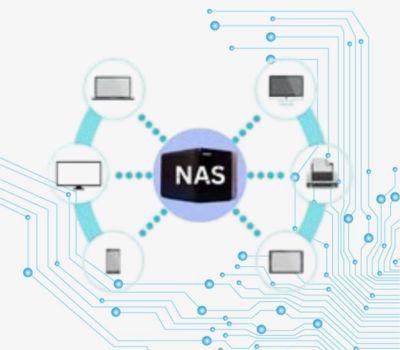
For example, when you save a file to a NAS from your laptop, the file travels through your Wi-Fi or Ethernet network to the NAS, where it is stored on one of its internal drives. Other authorized devices can then access the same file through the network.
Main Components of a NAS
NAS vs External Hard Drive
A NAS and an external hard drive are both useful for storing data, but they are designed for different purposes.
Why Use a NAS?
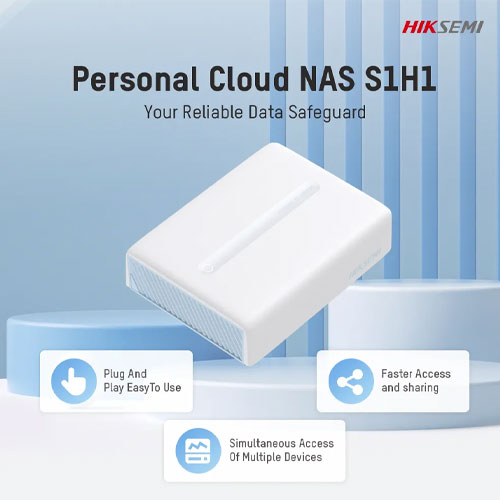
Centralized File Storage: A NAS allows you to keep important files in one central location. Instead of searching the Centralized through different laptops, phones, and external drives, users can access files from a shared storage system. This can be especially useful for families and small businesses that regularly work with documents, photographs, videos, and other files.
Easy File Sharing: A NAS can make it easier to share files between multiple users and devices. Depending on the NAS software, you can create shared folders and control which users are allowed to access them. This reduces the need to repeatedly transfer files using USB drives.
Computer Backup: Many NAS systems support automated backups. Computers can be configured to regularly back up important files to the NAS. This provides an additional copy of important data if a laptop or desktop computer fails. However, a NAS should not be considered your only backup. A separate backup copy is recommended for important data.
Access Files From Different Devices our only backup: A separate backup copy is recommended for important data. Once properly configured, a NAS can allow you to access your files from computers, smartphones, tablets, and other supported devices. For example, you could store photographs on your NAS and access them from your laptop without keeping multiple copies on every device.
User and Permission Management: NAS systems can provide individual accounts and access permissions. For example, a business could create separate accounts for employees and restrict access to sensitive folders. This makes a NAS more suitable for shared business storage than simply connecting an external hard drive.
Media Storage and Streaming: A NAS can also be used to store large collections of photographs, music, and videos. Some NAS systems and applications support media streaming, allowing compatible devices on the network to access stored content without keeping the files locally on every device.
Flexible Storage Capacity: NAS devices can contain multiple storage drives depending on their design. A two-bay NAS, for example, can accommodate two drives, while larger NAS systems can support more drives. This provides more flexibility than relying on a single external storage device.
What Is RAID in a NAS?
RAID (Redundant Array of Independent Disks) is a technology that combines multiple storage drives in different configurations to improve redundancy, performance, or both. Different RAID levels provide different benefits.
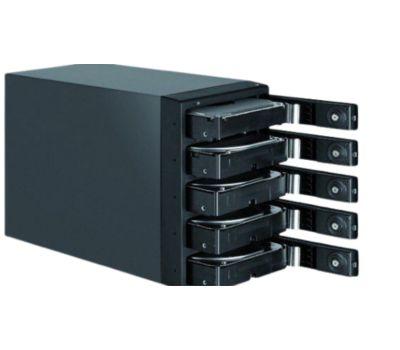
For example, RAID 1 mirrors data between two drives. If one drive fails, the other can still contain a copy of the data. However, RAID is not a replacement for backup. RAID primarily helps with drive failure and availability; it does not protect against every type of data loss, such as accidental deletion, malware, theft, or physical damage.
NAS for Home Users
A NAS can be useful for households that have a large amount of digital data. Common home uses include:
Storing family photographs and videos
Backing up laptops and desktop computers
Storing personal documents
Sharing files between family members
Creating a central media library
Managing large collections of digital files
Accessing selected files from different devices
For a typical home, a smaller NAS with one or two drive bays may be sufficient, depending on storage requirements.
NAS for Small Businesses
A NAS can also be useful for small offices that need centralized file storage without deploying a large enterprise storage system. Common business applications include:
Centralized document storage
Employee file sharing
Centralized document storage
Employee file sharing
Computer backups
Project file management
Shared folders
User access control
Surveillance recording on supported systems
Remote file access
Archiving important business data
For businesses, factors such as the number of users, storage capacity, network speed, backup strategy, and required security features should be considered before selecting a NAS.
How Much NAS Storage Do You Need?
The required storage capacity depends on what you plan to store.
Remember that the advertised storage capacity and the usable capacity can differ, especially when RAID is used. For example, installing two drives does not always mean that the total capacity of both drives will be available for storing files because some RAID configurations use part of the capacity for redundancy.
HDD or SSD for NAS?
NAS systems can use either HDDs or SSDs, depending on the model and intended workload.
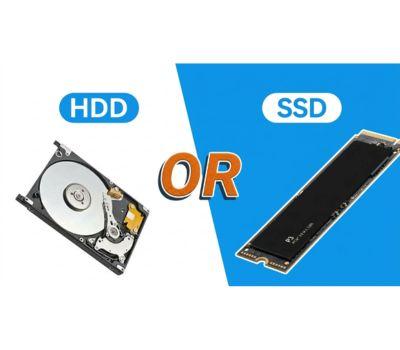
HDD for NAS: Hard disk drives are commonly used when large storage capacity is the priority. They can be useful for:
Large media libraries
File archives
General storage
Backup storage
SSD for NAS: SSDs provide faster access times and have no moving mechanical parts. They can be useful for:
Frequently accessed data
Applications that benefit from faster storage
Certain high-performance NAS workloads
SSD caching on supported NAS systems
For many home and small-business storage environments, HDDs can provide a practical balance between capacity and cost, while SSDs can be useful when performance is a higher priority.
What Network Connection Does a NAS Need?
Because NAS devices depend on network connectivity, the network connection is an important consideration. Most NAS devices connect to a router or network switch using Ethernet.
Common network speeds include:
1Gbps Ethernet
2.5Gbps Ethernet
10Gbps Ethernet on higher-performance systems
The actual file-transfer speed depends on several factors, including the NAS hardware, storage drives, network equipment, cables, and connected device. For example, having a high-speed NAS does not automatically provide high transfer speeds if the rest of the network only supports a slower connection.
Can You Access a NAS From Outside Your Home or Office?
Yes, many NAS systems support remote access, allowing users to access selected files while away from the local network. However, remote access should be configured carefully because exposing a storage device to the internet can introduce security risks.
Before enabling remote access, consider:
Strong, unique passwords
Two-factor authentication where available
Regular NAS software updates
User permissions
Secure remote-access methods
Keeping sensitive services disabled when they are not needed
Remote access features vary between NAS manufacturers and models, so users should follow the manufacturer's security recommendations.
What Should You Check Before Buying a NAS?
If you are considering purchasing a NAS, look at more than just storage capacity.
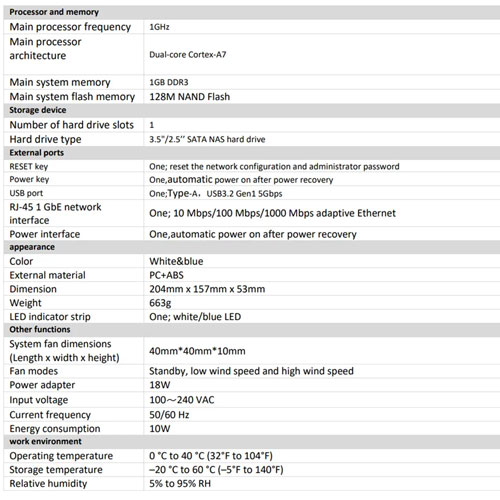
Number of Drive Bays: The number of drive bays determines how many drives the NAS can accommodate. A one-bay NAS may be suitable for basic storage, while two- or four-bay models can provide more flexibility and support certain RAID configurations.
Maximum Supported: Storage Check how much storage the NAS officially supports and whether the drives you plan to use are compatible.
Network Speed: Check whether the NAS has Gigabit, 2.5GbE, 10GbE, or another network connection appropriate for your workload.
RAM and Processor: NAS hardware affects how smoothly it can handle multiple users, applications, file transfers, and other tasks.
Backup Features: Look for support for automated backups, synchronization, snapshots, or other features relevant to your data-protection requirements.
Security Features: Consider user permissions, encryption options, two-factor authentication, security updates, and other available security features.
Expandability: If you expect your storage requirements to increase, choose a NAS that gives you room to expand.
Advantages of NAS
Centralized Storage: A NAS keeps files in one location that can be accessed by multiple authorized devices.
Easy File Sharing: Users can share files without constantly transferring them between computers using USB drives.
Automated Backups: Supported NAS systems can automate backups from computers and other devices.
Expandable Storage: Multi-bay NAS systems can provide options for adding or replacing drives.
Remote Access: Many NAS systems offer ways to access files remotely when configured securely.
Disadvantages
Initial Cost: A NAS requires the storage enclosure and usually one or more drives, making the initial investment higher than buying a single external drive.
Network Dependency: Accessing a NAS depends on the network. If the network is unavailable, accessing files may be more difficult.
Setup and Management: A NAS can require more configuration and maintenance than a basic external hard drive.
Security Responsibility: Remote access and multiple user accounts require proper security configuration.
Not a Complete Backup by Itself: A NAS can help with backups, but important data should still have additional copies stored separately.
NAS vs Cloud Storage
NAS and cloud storage solve similar problems but work differently.
A NAS can be particularly useful for users who want more direct control over their storage, while cloud storage can be convenient for users who prefer a managed service. For many users, NAS and cloud storage can also complement each other rather than being mutually exclusive.
Is NAS Right for You?
A NAS may be worth considering if you:
Have multiple computers or devices
Regularly share files with other people
Need centralized storage
Have a large photo or video collection
Want automated computer backups
Need shared business folders
Want more control over where your files are stored
On the other hand, if you only need a small amount of additional storage for one laptop, a simple external HDD or SSD may be a more straightforward solution.
Final Thoughts
A NAS is more than just a storage device. It is a centralized storage system that can help individuals, families, and small businesses organize, share, and back up their digital files. For home users, a NAS can provide a central location for photographs, videos, documents, and computer backups. For small businesses, it can simplify file sharing, centralized storage, and data-management tasks.
Before purchasing one, consider your storage requirements, number of users, number of drive bays, network speed, backup needs, security requirements, and future expansion plans. If you are building a NAS setup, the storage drives and network equipment are just as important as the NAS enclosure itself. Choosing compatible HDDs, SSDs, Ethernet cables, routers, switches, and other networking accessories can help create a reliable storage environment for your home or business.
Frequently Asked Questions
These terms of service ("Terms", "Agreement") are an agreement between the website ("Website operator", "us", "we" or "our") and you ("User", "you" or "your"). This Agreement sets forth the general terms and conditions of your use of this website and any of its products or services (collectively, "Website" or "Services").
Is NAS the same as a hard drive?
No. A NAS is a network-connected storage system that can contain one or more HDDs or SSDs. A hard drive is a storage device that provides the actual storage capacity.
Can I use a NAS without the internet?
Yes. A NAS can be used over your local network without an internet connection. Internet access is generally needed only for certain remote-access or cloud-related features.
Can a NAS replace Google Drive?
A NAS can provide similar file-storage and access functionality, but it works differently. A NAS gives you control over your own storage hardware, while Google Drive is a cloud service managed by Google.
Is NAS good for backup?
Yes, a NAS can be an important part of a backup strategy. However, keeping the only copy of your data on a NAS is not considered a complete backup strategy.
How many hard drives do I need for a NAS?
It depends on the NAS model and your requirements. A single-drive NAS can provide basic network storage, while multi-drive NAS systems offer additional options such as RAID and redundancy.
Can I access my NAS from my phone?
Many NAS systems provide mobile applications that allow users to access, upload, download, or manage files from smartphones. The exact features depend on the NAS manufacturer and software.