Imagine having two computers on your desk—one for work and another for personal use. You need to switch between them frequently, but using separate keyboards, mice, and monitors can make your workspace crowded and difficult to manage. A KVM switch can solve this problem.
KVM stands for Keyboard, Video, and Mouse. It is a hardware device that allows you to control multiple computers using a single keyboard, mouse, and display. Instead of constantly switching cables or maintaining separate peripherals, you can switch between connected computers whenever you need to. Whether you are a professional working with multiple systems, an IT administrator, a developer, a gamer, or simply someone who uses both a laptop and desktop, a KVM switch can make your workspace more convenient and organized.
What Is a KVM Switch?
A KVM switch is a device that allows multiple computers to share the same keyboard, mouse, and monitor.
The basic setup is: Multiple Computers → KVM Switch → Keyboard + Mouse + Monitor
The computers are connected to the KVM switch, while the keyboard, mouse, and monitor are also connected to the switch. You can then select which computer you want to control. For example, if two computers are connected to a KVM switch, you can use the same keyboard, mouse, and monitor to operate either computer by switching between them. Depending on the model, switching can be done using a physical button, keyboard shortcut, remote control, or another supported method.
What Does KVM Stand For?
The term KVM represents the three main peripherals involved:
Modern KVM devices can also support additional USB peripherals, audio, and other connections depending on the model.
How Does a KVM Switch Work?
A KVM switch works as a central connection point between your computers and shared peripherals. For example, suppose you have two computers, one monitor, one keyboard, and one mouse. Instead of connecting the keyboard and mouse separately to each computer, you connect both computers to the KVM switch and then connect your monitor, keyboard, and mouse to the switch.
The setup can be represented as:
Computer 1 ─┐
Computer 2 ─┼── KVM Switch ── Monitor
Computer 3 ─┘ ├── Keyboard
** └── Mouse**
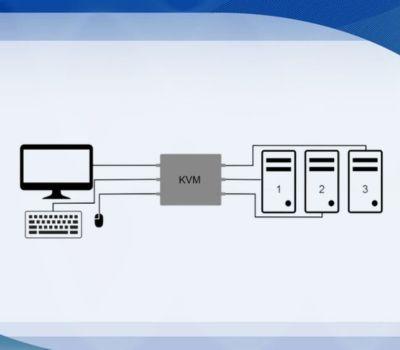
When you select Computer 1, the keyboard and mouse control Computer 1, and its video output appears on the monitor. When you switch to Computer 2, the same keyboard and mouse can be used to control Computer 2. This eliminates the need to constantly unplug and reconnect your peripherals.
Why Do You Need a KVM Switch?
A KVM switch is particularly useful when you regularly work with multiple computers. Here are some of its main benefits.
Control Multiple Computers: The biggest advantage of a KVM switch is that it allows you to control multiple computers using the same keyboard and mouse. For example, you may have a work computer and a personal computer on the same desk. A KVM switch lets you use one set of peripherals for both.
Reduce Desk Clutter: Multiple computers often mean multiple keyboards, mice, cables, and monitors. A KVM switch can reduce the number of peripherals you need and help create a cleaner and more organized workspace.
Save Desk Space: If you have limited desk space, maintaining separate keyboards and mice for every computer can be inconvenient. A KVM switch allows compatible computers to share the same peripherals, helping you make better use of your available workspace.
Switch Between Computers Easily: A KVM switch allows you to move between connected computers without repeatedly disconnecting and reconnecting cables. Depending on the model, you may be able to switch using a button, keyboard shortcut, remote control, or another supported method.
Improve Workspace Efficiency: For people who frequently move between different computers, a KVM switch can make the workflow more convenient. Instead of reaching for another keyboard or mouse, you can simply switch to the computer you need.
KVM Switch vs USB Hub: What's the Difference?
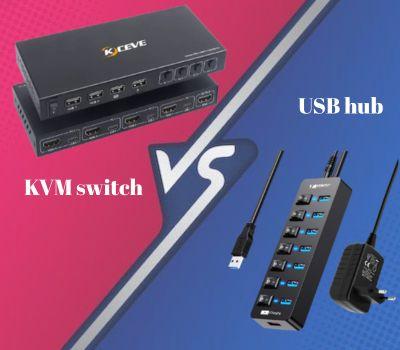
A KVM switch and a USB hub may look similar because both can provide additional connectivity, but they serve different purposes. A USB hub allows you to connect multiple USB devices to a single computer. For example: Laptop → USB Hub → Keyboard + Mouse + USB Drive
A KVM switch, on the other hand, is designed to allow multiple computers to share a keyboard, mouse, and display. For example:
Computer 1 ─┐
Computer 2 ─┼── KVM Switch ── Keyboard + Mouse + Monitor
Computer 3 ─┘
In simple terms: USB Hub: Expands the number of USB devices you can connect to one computer.
KVM Switch: Allows you to share peripherals between multiple computers.
KVM Switch vs Docking Station
A KVM switch and a docking station are also designed for different purposes. A docking station expands the connectivity of a laptop by providing additional ports for monitors, USB devices, Ethernet, audio, storage, and other peripherals.
A KVM switch is primarily designed to switch shared peripherals between multiple computers. In simple terms:
Docking Station: “I want to connect more devices to my laptop.”
KVM Switch: “I want to control multiple computers using the same peripherals.”
Some advanced devices can combine features of both, so it is important to check the specifications before purchasing.
Types of KVM Switches
KVM switches are available in different configurations depending on the number of computers, video connections, and features they support.
2-Port KVM Switch: A 2-port KVM switch allows you to switch between two computers using a shared keyboard, mouse, and display. It can be useful for:
Home offices
Students
Developers
Remote workers
Users with a work and personal computer
4-Port KVM Switch: A 4-port KVM switch can connect up to four computers to a shared peripheral setup. It can be useful for:
IT professionals
Developers
Testing environments
Small businesses
Multi-computer workstations
HDMI KVM Switch: An HDMI KVM switch uses HDMI connections for video transmission. It can be a good choice when your computers and monitor use HDMI. Before purchasing one, check the supported resolution and refresh rate to make sure it is compatible with your monitor.
DisplayPort KVM Switch: A DisplayPort KVM switch uses DisplayPort for video transmission. It can be useful for users who require higher resolutions or refresh rates, depending on the capabilities of the KVM and connected devices.
KVM Extender: A KVM extender is designed to extend keyboard, mouse, and video signals over a longer distance. Unlike a typical desktop KVM switch, a KVM extender can be useful when the computer and the display or control station are located farther apart. For example, a KVM extender may be useful in server rooms, control rooms, offices, or other environments where the computer needs to be located away from the user's workstation.
What Should You Check Before Buying a KVM Switch?
Choosing the right KVM switch depends on your computers, monitor, peripherals, and intended use. Consider the following factors before purchasing one.
Number of Computers: First, determine how many computers you want to connect. If you only need to switch between two computers, a 2-port KVM may be sufficient. If you need to manage four computers, consider a 4-port KVM.
Video Interface: Check the video ports available on your computers and monitor. Common video connections include:
HDMI
DisplayPort
DVI
VGA
USB-C on certain devices
The KVM switch should support the connections required by your setup.Supported Resolution: Always check the maximum resolution supported by the KVM switch. If you use a Full HD, 1440p, or 4K monitor, make sure the KVM supports the resolution you need.
Refresh Rate: Resolution is not the only specification that matters. If you use a high-refresh-rate gaming monitor, check whether the KVM supports the required refresh rate. For example, a KVM that supports 4K resolution may not necessarily support 4K at a high refresh rate.
USB Connectivity: If you want to use your keyboard, mouse, or other USB peripherals through the KVM, check the number and type of USB ports available. This is especially important if you plan to connect additional USB devices.
Switching Method: Different KVM switches offer different switching methods. Depending on the model, you may be able to switch between computers using:
Physical buttons
Keyboard shortcuts
Remote controls
Other supported controls
Choose a method that is convenient for your workspace.Compatibility: Before buying a KVM switch, make sure it is compatible with your computers, operating systems, monitor, keyboard, mouse, and other peripherals. Checking compatibility beforehand can help prevent connection problems after installation.
Can You Use a Wireless Keyboard and Mouse With a KVM Switch?
A wireless keyboard and mouse can work with some KVM setups, but compatibility depends on the KVM and the wireless peripherals being used. Many wireless keyboard and mouse sets use a USB receiver. If the KVM provides compatible USB connectivity, the receiver may be connected through the KVM.
However, wireless peripherals can work differently depending on their connection technology, so it is important to check the specifications of both devices before purchasing. For users looking for a flexible wireless keyboard and mouse setup, multi-mode devices that support technologies such as Bluetooth and 2.4 GHz wireless can be useful for working with multiple devices.
Who Can Benefit From a KVM Switch?
A KVM switch can be useful for many different types of users.
Developers: Developers often work with multiple computers or operating systems for programming, testing, and development. A KVM switch can make it easier to move between different systems without maintaining separate keyboards and mice.
Office Professionals: People who use both a work computer and a personal computer can use a KVM switch to share their existing workstation. This can reduce the need for duplicate peripherals.
Gamers: Gamers who use multiple computers may benefit from a KVM switch, especially when they want to share a monitor and peripherals. However, gamers should pay close attention to resolution and refresh-rate support when choosing a KVM.
IT Professionals: IT professionals and system administrators may need to work with multiple computers or systems. A KVM switch can provide a convenient way to manage multiple systems from a single workstation. For setups where computers are located farther away, a KVM extender can provide a practical alternative.
Home Users: A KVM switch can also be useful for home users who regularly switch between a desktop computer and laptop. Instead of maintaining separate keyboards and mice, compatible systems can share the same workstation.
A Simple KVM Switch Setup
Consider a workspace with:
One desktop computer
One laptop
One monitor
One keyboard
One mouse
Without a KVM switch, you may need to manually change connections or use separate peripherals. With a compatible KVM setup, both the laptop and desktop can be connected to the KVM switch. The monitor, keyboard, and mouse are then connected to the KVM. You can switch between the two computers whenever needed. The exact connection method depends on the KVM model, so always follow the manufacturer's installation instructions.
Common Mistakes to Avoid When Buying a KVM Switch
Buying Only Based on Price: The cheapest KVM switch may not always be the best choice. Consider the supported resolution, refresh rate, ports, number of computers, and compatibility before making a decision.
Ignoring Resolution and Refresh Rate: If you use a high-resolution or high-refresh-rate monitor, make sure the KVM supports the specifications you require.
Forgetting About Available Ports: Check the ports on your computers and monitor before purchasing. A KVM with HDMI may not be suitable for a setup that primarily uses DisplayPort without the appropriate adapters or connections.
Assuming Every KVM Supports Every Peripheral: Different KVM switches support different combinations of keyboards, mice, USB devices, audio, and displays. Always check the specifications of the specific model.
Confusing a KVM Switch With a USB Hub: A USB hub expands USB connectivity for a computer, while a KVM switch allows compatible peripherals to be shared between multiple computers.
Is a KVM Switch Worth It?
A KVM switch can be a valuable addition if you regularly work with two or more computers. It can help you:
Reduce desk clutter
Share one keyboard and mouse
Share a monitor
Switch between computers conveniently
Save workspace
Create a cleaner multi-computer setup
However, if you only use one computer and rarely switch between devices, a KVM switch may not be necessary. The right choice depends on how many computers you use and what peripherals you need to share.
Final Thoughts
A KVM switch provides a practical solution for people who regularly work with multiple computers. Instead of using separate keyboards, mice, and monitors for every system, a compatible KVM switch allows you to share your peripherals and switch between computers from a single workstation.
Before choosing a KVM switch, consider the number of computers, video interface, supported resolution, refresh rate, USB connectivity, switching method, and device compatibility. For longer-distance setups, a KVM extender can provide another solution by extending keyboard, mouse, and video connections between locations. Whether you are setting up a home office, managing multiple computers, building a development workstation, or working in an IT environment, choosing the right KVM solution can make your workspace more organized and efficient.
Frequently Asked Questions
KVM stands for Keyboard, Video, and Mouse. A KVM switch allows multiple computers to share compatible keyboard, mouse, and display peripherals.
It depends on the KVM switch and wireless peripherals. Some wireless keyboard and mouse setups can work through the KVM's USB connections, but compatibility should be checked before purchasing.
No. 4K support depends on the specific KVM model. You should also check the supported refresh rate to ensure it meets your monitor's requirements.
Check the number of computers supported, video ports, resolution, refresh rate, USB connectivity, switching method, and compatibility with your computers and peripherals.