
A
laptop is designed to provide the freedom to work, study, create content,
browse the internet, and enjoy entertainment without always being connected to
a power outlet. However, one of the most important components that determines
this convenience is the battery. Over
time, laptop batteries naturally lose some of their ability to hold a charge.
This is normal because modern laptops generally use rechargeable lithium-ion batteries,
which gradually age through use, charging patterns, and exposure to heat.
However, good charging and usage habits can help slow down battery degradation
and maintain better battery performance for longer.
In
this we can know about what laptop battery health means, why batteries degrade,
and the practical steps you can take in 2026 to extend your laptop battery's
useful life.
What Is Laptop Battery Health?
Laptop battery health refers to the battery's current ability to hold and deliver power compared with its original condition. For example, a new laptop battery may have a certain maximum capacity. After months or years of use, its maximum capacity can decrease. This means the laptop may not run for as many hours on a full charge as it did when it was new.
Battery health should not be confused with the current battery percentage. Battery percentage tells you how much charge is currently available. Battery health indicates how much capacity the battery can hold compared with when it was new. As rechargeable batteries chemically age, their capacity gradually decreases. Factors such as temperature and charging patterns can influence how quickly this happens.
Why Does Laptop Battery Health Decrease?
Laptop batteries do not maintain their original capacity forever. Several factors contribute to battery degradation.
- Battery Age: Lithium-ion batteries naturally lose capacity as they age. The battery can continue to work, but its runtime may gradually become shorter.
- Charging and Discharging: Repeated charging and discharging contribute to battery wear. A charge cycle does not necessarily mean plugging the laptop in once. A cycle represents cumulative use of the battery's capacity.
- Excessive Heat: Heat is one of the important factors that can accelerate battery aging. Using or charging a laptop at high temperatures can cause lithium-ion batteries to deteriorate more quickly.
- Heavy Workloads: Gaming, video editing, 3D applications, and other demanding tasks can increase power consumption and generate more heat. Managing temperatures is therefore important when performing demanding work.
- Keeping the Battery at High Charge for Long Periods: Keeping a lithium-ion battery at a very high charge level for extended periods can contribute to faster aging. This is why many modern laptops include smart charging or battery protection features.
Ways to Extend Your Laptop Battery Life in 2026
- Avoid Frequent Deep Discharges: Try not to regularly run your laptop battery completely empty. Microsoft recommends avoiding frequent deep discharges and suggests keeping a Windows laptop's battery within a moderate range, roughly 20% to 80% when practical. This does not mean you can never use your laptop below 20% or charge it to 100%. The goal is to avoid making complete discharge a regular habit.
- Avoid Excessive Heat: Keep your laptop in a cool and well-ventilated environment whenever possible. Avoid using the laptop on surfaces that block its ventilation, such as beds, blankets, or soft cushions. When performing demanding tasks, make sure the laptop's cooling system has enough airflow. Heat can accelerate the chemical aging of lithium-ion batteries.
- Use Your Laptop's Battery Protection Features: Many modern laptops include features designed to reduce battery wear. Depending on the manufacturer, these may include:
- Smart charging
- Battery conservation mode
- Charge limits
- Optimized charging
- Battery health management
- Reduce Screen Brightness: The display can be a significant source of power consumption. When you are working indoors, reducing screen brightness to a comfortable level can help extend the time between charges. Windows 11 also provides power-saving recommendations that can adjust settings such as screen brightness and sleep timers.
- Use Battery Saver or Energy Saver:
When you need your battery to last longer, use the operating system's built-in power-saving features. On Windows 11, you can find relevant options under:
Settings → System → Power & battery
Windows provides Energy Saver and other power-efficiency settings to reduce unnecessary power consumption. - Keep Your Laptop Software Updated:
Operating system and manufacturer updates can include performance improvements, power-management improvements, security fixes, and hardware-driver updates. Keeping your laptop updated can therefore help maintain overall system efficiency. - Store the Laptop Properly When Not in Use: If you are storing your laptop for an extended period, do not leave the battery completely empty or fully charged for months. Microsoft recommends storing a Windows laptop at around 40%–60% charge, in a cool and dry location, and checking the battery periodically.
Is It Bad to Keep Your Laptop Plugged In?
Not necessarily. Modern laptops have charging-management systems, so keeping a laptop connected to power does not automatically mean the battery is constantly being charged at maximum power. However, spending long periods at a very high charge level can contribute to battery aging. This is why smart charging and charge-limit features can be useful.
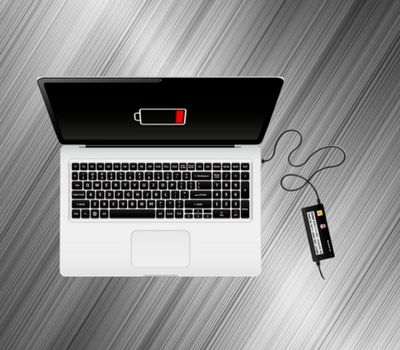
For example, Apple's Optimized Battery Charging can delay charging beyond 80% when it predicts that the Mac will remain connected to power for an extended period. If your laptop has a manufacturer-provided battery conservation or charge-limit feature, enabling it can be helpful when you frequently use the laptop while connected to AC power.
How to Check Battery Health in Windows 11
Windows 11 includes a built-in battery report that provides detailed information about battery usage and capacity.
Step 1: Open Command Prompt
Search for Command Prompt from the Windows Start menu.
Step 2: Run the Battery Report Command
Open Command Prompt as administrator and enter:
Then press Enter.
Step 3: Open the Report
Windows creates an HTML battery report and displays its saved location in the Command Prompt window. Open the report using a web browser.
The report can provide information such as:
- Installed battery details
- Recent battery usage
- Battery capacity
- Usage history
- Battery-related information over time
Microsoft officially recommends this built-in method for obtaining a detailed battery report in Windows 11.
How to Check Battery Health on a MacBook
Mac
users can check battery information through macOS.
Go
to:
Apple
menu → System Settings → Battery
Depending
on the Mac model and macOS version, you may see battery health information and
options such as Optimized Battery Charging or Charge Limit. Apple also provides
information about battery cycle counts. A cycle represents the cumulative use
of the battery's capacity rather than simply the number of times the charger
was connected.
Common Laptop Battery Mistakes to Avoid
Many battery problems are caused not by a single mistake but by habits repeated over a long period. Avoid these common practices:
- Leaving the laptop in extreme heat: High temperatures can accelerate battery degradation.
- Regularly draining the battery to 0%: Frequent deep discharges are not recommended for modern lithium-ion batteries.
- Blocking the laptop's air vents: Poor ventilation can increase operating temperatures.
- Using an incompatible charger: Always use a suitable charger that meets your laptop manufacturer's requirements.
- Ignoring battery swelling: A visibly swollen battery is a serious warning sign. Microsoft advises stopping use immediately if a battery expands beyond the device's enclosure because damaged lithium-ion batteries can present a safety risk.
- Using unreliable third-party charging accessories: Low-quality or incompatible charging equipment can create charging and safety problems. Choose reputable, compatible accessories.
When Should You Replace Your Laptop Battery?
Laptop batteries naturally lose capacity over time, so battery replacement eventually becomes necessary.
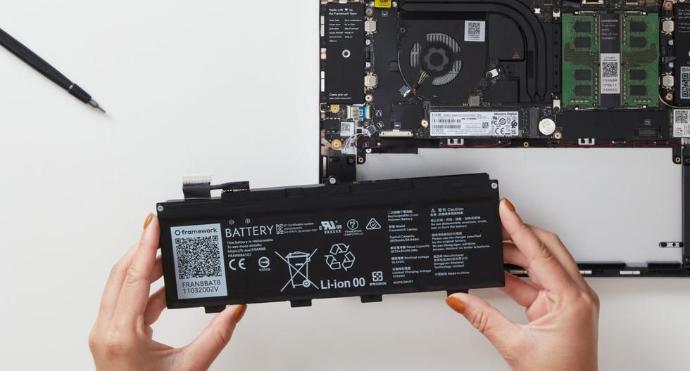
You may need to consider replacement when:
- Battery life has become significantly shorter.
- The laptop shuts down unexpectedly.
- The battery percentage changes unusually quickly.
- The laptop has charging problems.
- The operating system reports a battery service warning.
- The battery is visibly swollen.
If the battery is swollen, do not attempt to puncture, squeeze, or remove it yourself unless you are properly qualified to do so. Stop using the device and seek professional service.
Battery replacement should ideally be performed by a qualified technician using a compatible replacement battery.
Does Charging to 100% Damage a Laptop Battery?
Charging
to 100% occasionally is not something you need to worry about. A full charge
can be useful when you need maximum runtime—for example, before traveling or
attending a long meeting. The bigger concern is spending extended periods at a
very high charge level combined with other factors such as heat. Modern
battery-management features are designed to reduce unnecessary battery wear.
Therefore,
do not become overly concerned about reaching 100%. Instead, focus on good
overall charging and temperature habits.
How Long Does a Laptop Battery Last?
There is no single number of years that applies to every laptop battery. Battery lifespan depends on factors such as:
- Battery chemistry
- Usage frequency
- Charging patterns
- Temperature
- Workload
- Number of charge cycles
- Laptop design
- Battery-management features
As the battery chemically ages, its maximum capacity decreases. This means that an older battery may still function normally but provide less runtime than when it was new.
Quick Laptop Battery Health Checklist
For everyday use, remember these simple rules:
- Keep the laptop cool.
- Avoid frequent deep discharges.
- Use battery-saving features when necessary.
- Reduce screen brightness when possible.
- Close unnecessary applications.
- Keep Windows or macOS updated.
- Use a compatible charger.
- Enable smart charging or charge-limit features when available.
- Avoid storing the laptop at 0% for long periods.
- Get professional help if the battery becomes swollen or damaged.
Conclusion
A laptop battery naturally loses capacity as it ages, but the way you use and maintain your laptop can influence how quickly that happens. Good battery habits include avoiding excessive heat, preventing frequent deep discharges, using power-saving settings, keeping unnecessary background activity under control, and taking advantage of smart charging or battery-protection features when available.
You do not need to follow complicated rules to maintain good battery health. Simple habits such as keeping your laptop cool, using a suitable charger, and avoiding unnecessary battery stress can make a meaningful difference over the long term. Whether you use your laptop for college, office work, digital marketing, programming, content creation, or entertainment, taking care of the battery helps you get more reliable performance from your device. Looking for a new laptop or need professional assistance with your existing device? Visit Quality Computer to explore laptops, accessories, and computer-related solutions suited to your need
Frequently Asked Questions About Laptop Battery Health
Avoid frequent deep discharges, keep your laptop cool, use the correct charger, and enable battery protection features when available.
Not necessarily. Modern laptops manage charging automatically, but using charge-limit features can help reduce battery wear.
Battery lifespan varies depending on usage, charging habits, temperature, workload, and the number of charge cycles.
Consider replacing it when battery life becomes very short, the laptop shuts down unexpectedly, or a battery service warning appears.
Not necessarily. Modern laptops manage charging automatically, but using charge-limit features can help reduce battery wear.
Occasionally charging to 100% is fine. However, keeping the battery at 100% for long periods may contribute to faster aging.
Website may use cookies to personalize and facilitate maximum navigation of the User by this site. The User may configure his / her browser to notify and reject the installation of the cookies sent by us.