
MacBooks are known for their slim design, portability, and powerful performance. However, their limited number of ports can become inconvenient when you want to connect a monitor, keyboard, mouse, storage device, memory card, or other accessories. A MacBook docking station can solve this problem by allowing you to connect multiple devices through a single USB-C connection. This makes it easier to use your MacBook as a complete workstation at home, in the office, or while working remotely.
In this guide, we will explain what a docking station is, why you may need one for your MacBook, what ports to look for, and some suitable options available in Nepal.
What Is a Docking Station?
A docking station is a device that expands the connectivity of your MacBook. Instead of connecting several accessories directly to your laptop, you can connect them to the docking station and then connect the dock to your MacBook.
For example:
MacBook → USB-C → Docking Station → Monitor + Keyboard + Mouse + Storage + Ethernet
This allows you to create a cleaner and more organized workstation while keeping your MacBook easy to connect and disconnect.
Why Do You Need a Docking Station for a MacBook?
A docking station can be useful if you regularly work with multiple accessories.
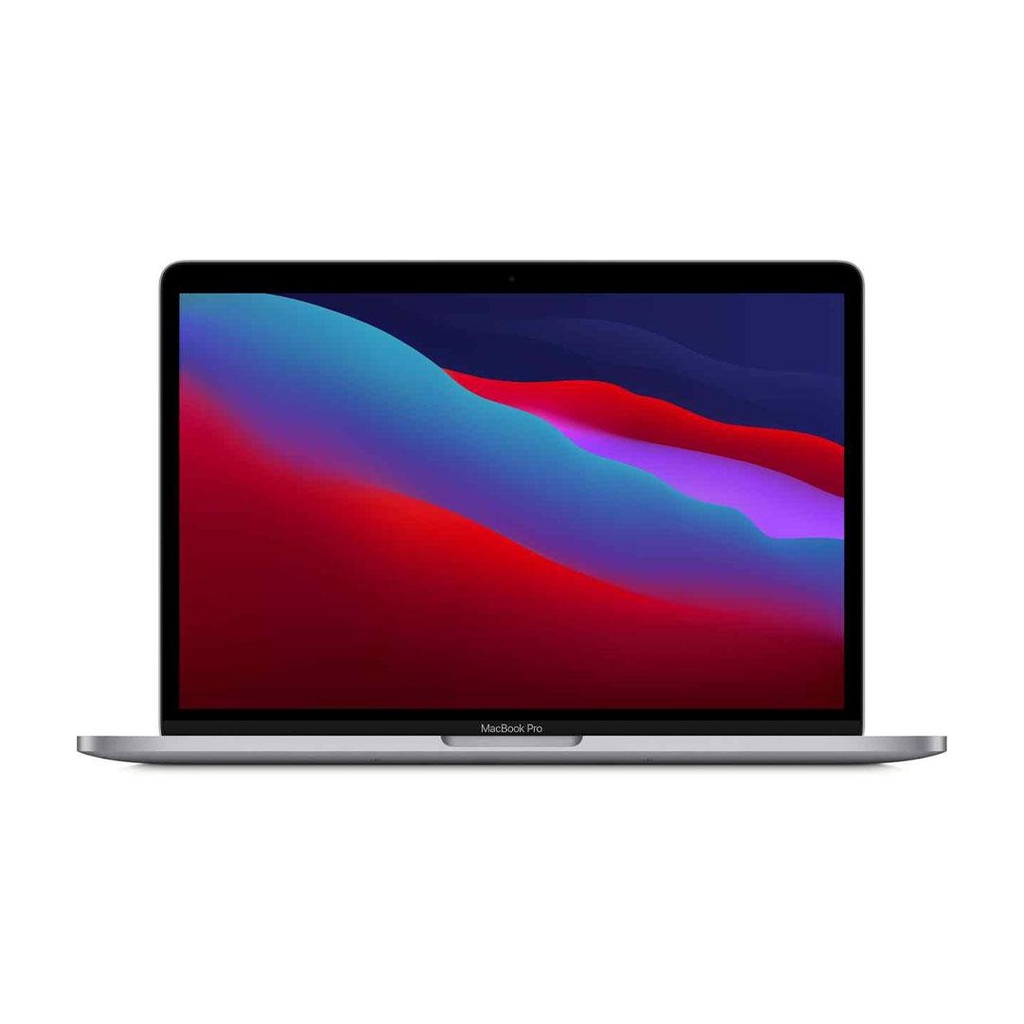
1. Connect an External Monitor : A docking station with HDMI or other display outputs can allow you to connect your MacBook to an external monitor. This is useful for multitasking, content creation, office work, coding, and studying.
2. Add More USB Ports: MacBooks have a limited number of physical ports. A dock can provide additional USB-A and USB-C ports for keyboards, mice, flash drives, external storage, and other accessories.
3. Connect External Storage : If you frequently transfer large files, an external SSD or other storage device can be connected through the docking station.
4. Connect SD and microSD Cards: For photographers, videographers, and content creators, an SD or microSD card reader can make transferring photos and videos much easier.
5. Reduce Cable Clutter: Instead of connecting multiple cables directly to your MacBook every time you sit at your desk, you can leave your accessories connected to the docking station and use one main cable to connect your MacBook.
What Ports Should You Look For in a MacBook Dock?
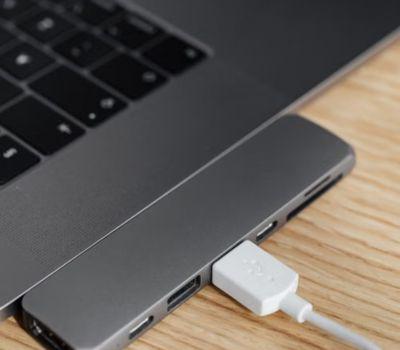
Not every docking station offers the same connectivity. Before buying one, consider the ports you actually need.
if you plan to use an external monitor, pay particular attention to the display output and supported resolution.
Best MacBook Docking Station Options at Quality Computer
Quality Computer offers different USB-C docking solutions that can be useful for MacBook users.
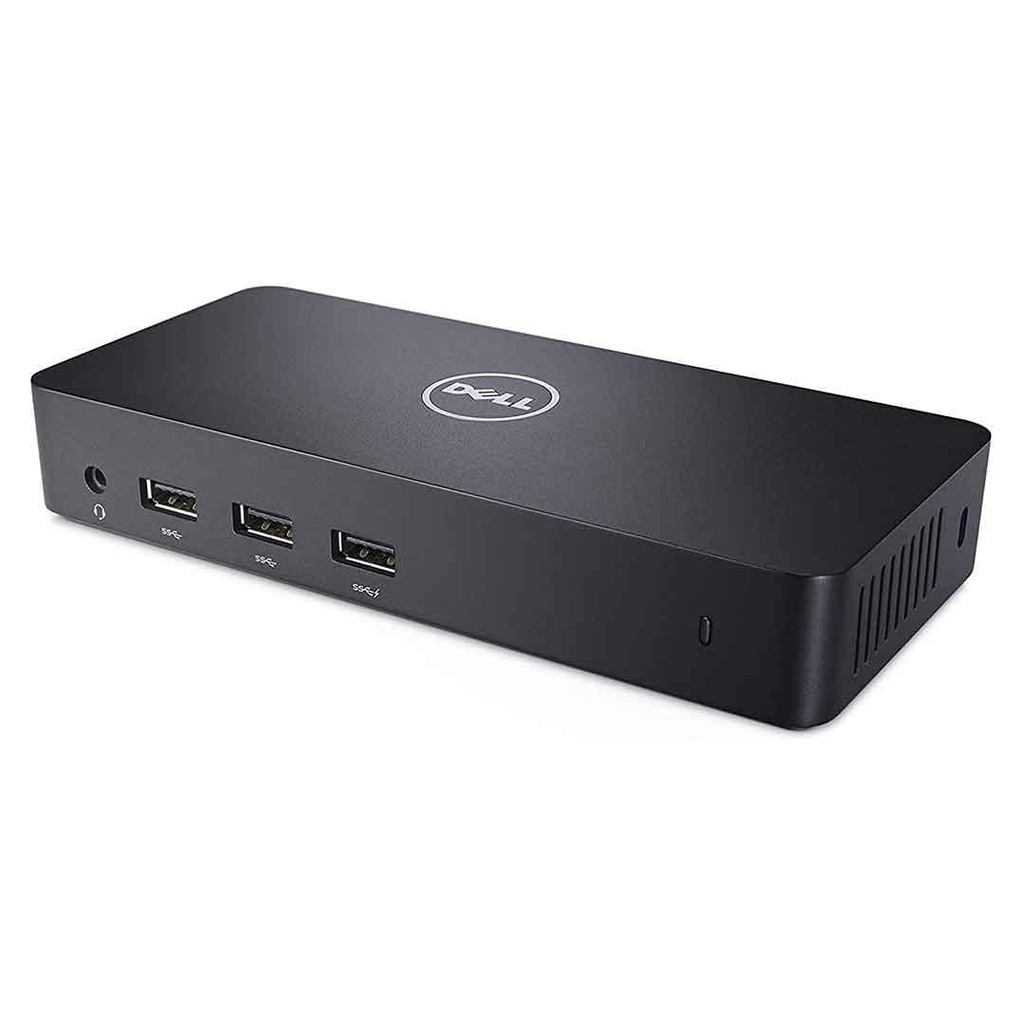
1. UNITEK D1137A USB-C Foldable Laptop Stand with Docking Station
The UNITEK D1137A is more than a traditional docking station. It combines a laptop stand with a built-in USB-C docking station, making it useful for users who want both better laptop positioning and additional connectivity. It includes a 4K@60Hz HDMI output, 100W USB-C Power Delivery, two USB-A 5Gbps ports, a USB-C data port, and SD and microSD card readers. It also has an aluminum alloy design and a foldable structure. The dock supports Mac OS, making it suitable for compatible MacBook setups. Key Features:
100W USB-C Power Delivery
2 × USB-A 5Gbps
USB-C data port
SD and microSD card readers
Adjustable laptop stand
Aluminum alloy construction
Compatible with Mac OS
2. Huntkey 4-in-1 USB-C Docking Station
For users who need a simpler and more affordable solution, the Huntkey 4-in-1 USB-C Docking Station provides essential connectivity in a compact design. It features HDMI, USB 3.0, USB 2.0, and USB-C Power Delivery. It supports up to 4K × 2K at 30Hz through HDMI and is compatible with macOS.
Key Features:
- HDMI output
- USB 3.0
- USB 2.0
- USB-C PD
- Up to 4K × 2K at 30Hz
- Compact design
- macOS compatibility
How to Choose the Right Docking Station for Your MacBook
Before purchasing a docking station, consider these factors:
Check Your MacBook Ports
First, check which ports your MacBook has. Many newer MacBook models use USB-C/Thunderbolt ports, so a USB-C docking station can be a practical choice.
Check Monitor Requirements:
If you want to connect an external monitor, check the dock's HDMI or DisplayPort specifications. If you need 4K at 60Hz, make sure the docking station specifically supports it.
Look at Power Delivery:
If you want to charge your MacBook through the docking station, choose a model with USB-C Power Delivery and check its supported wattage.
Consider Your Accessories:
Think about what you will connect to the dock. If you use a keyboard, mouse, external SSD, memory card, monitor, and Ethernet connection, choose a dock with enough ports for your setup.
Consider Your Workspace:
If you work at a desk every day, a docking station with a laptop stand can help keep your workspace cleaner and more comfortable.
Example MacBook Workstation Setup:
You can turn a MacBook into a complete workstation with a simple setup:
MacBook + Docking Station + External Monitor + Keyboard + Mouse + External Storage
For content creators, students, digital marketers, programmers, and office users, this setup can provide the convenience of a desktop workstation while allowing the MacBook to remain portable.
Docking Station vs USB-C Hub: What's the Difference?
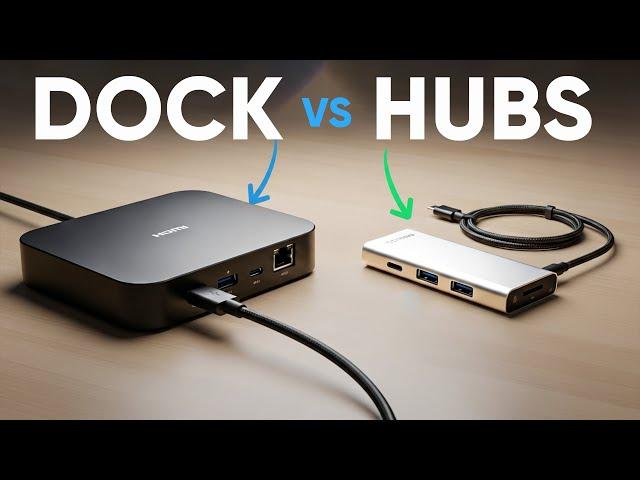
USB-C hubs and docking stations are often used interchangeably, but they are not always the same. A USB-C hub is generally designed to add a few extra ports to your laptop. A docking station is usually designed for a more complete workstation setup, with multiple connectivity options such as display outputs, USB ports, Ethernet, memory card readers, and power delivery.
If you only need HDMI and a few USB ports, a compact USB-C hub may be enough. If you want to connect several devices and use your MacBook as a desktop-style workstation, a docking station can be a better choice.
Is a Docking Station Worth It for a MacBook?
If you regularly work with multiple peripherals, a docking station can be a worthwhile MacBook accessory. It can reduce cable clutter, expand connectivity, and make it easier to switch between a portable setup and a desk workstation. For basic users, a simple USB-C dock may be enough. For professionals and content creators, a dock with multiple display options, high-speed USB ports, memory card readers, and Power Delivery may be more useful.
Final Thoughts
A MacBook is already a powerful and portable computer, but a docking station can make it much more flexible for desk-based work. With the right dock, you can connect an external monitor, keyboard, mouse, storage, memory cards, and other accessories while keeping your MacBook setup organized.
Before buying, always check your MacBook's ports, monitor requirements, Power Delivery support, and the number of accessories you need to connect. If you are looking for MacBooks, docking stations, laptop accessories, and other computer products in Nepal, Quality Computer offers a range of options to build your setup.
Things You May Want to Know
Yes. USB-C docking stations designed with macOS compatibility can be used with compatible MacBook models.
Check port compatibility, display resolution, Power Delivery, data-transfer speeds, and whether the dock supports your MacBook and operating system.
Yes, if the docking station provides a compatible display output such as HDMI or DisplayPort and supports your required resolution.
Some docking stations support USB-C Power Delivery, allowing them to charge a compatible MacBook through the dock.
Yes. If the docking station has a compatible USB port, you can connect an external SSD for file storage and data transfer.
Website may use cookies to personalize and facilitate maximum navigation of the User by this site. The User may configure his / her browser to notify and reject the installation of the cookies sent by us.
Not exactly. A USB-C hub generally provides basic port expansion, while a docking station is usually designed for a more complete workstation setup.