
How to Take a Screenshot on a Laptop: Windows, Mac and Chromebook (2026)
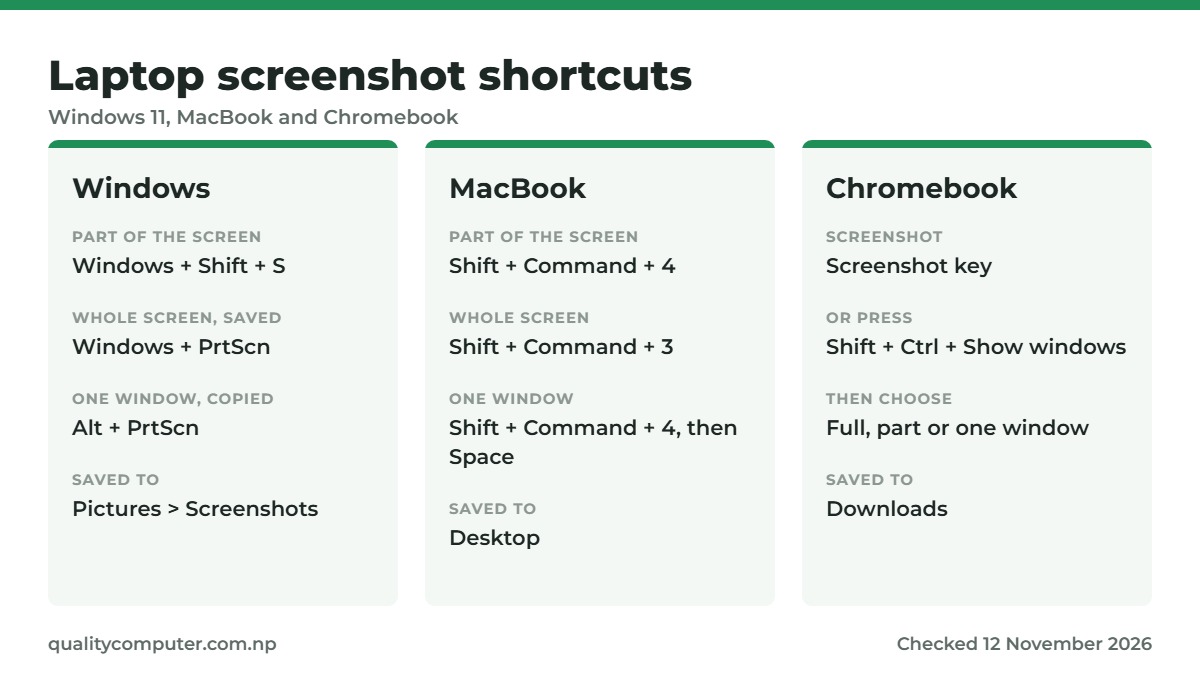
Short answer: Windows: press Windows + Shift + S and drag over the part you want, or Windows + PrtScn to save the whole screen to Pictures, Screenshots. MacBook: Shift + Command + 3 for the whole screen, Shift + Command + 4 for part of it. Chromebook: press the Screenshot key, or Shift + Ctrl + Show windows, then choose Screenshot.
Shop at Quality Computer
Laptops, MacBooks and accessories View all →
Screenshot on a Windows laptop
Every Windows 11 laptop, whether HP, Dell, Lenovo, Asus or Acer, uses the same shortcuts (Microsoft). Most of them work on Windows 10 too, but screen recording and auto-saved snips need Windows 11.
| Press | What it does |
|---|---|
| Windows + Shift + S | Opens the Snipping Tool bar. Drag over an area, or pick a window or the full screen. The picture is copied, ready to paste. |
| PrtScn | On recent Windows 11 it opens the same Snipping Tool bar. On Windows 10, or if that setting is off, it copies the whole screen. |
| Windows + PrtScn | Saves a picture of the whole screen as a file in Pictures, Screenshots. The screen usually dims for a moment to show it worked; if it doesn't, check the folder anyway. |
| Alt + PrtScn | Copies just the window you're using. |
A copied screenshot isn't a file yet. Paste it with Ctrl + V into WhatsApp, Messenger, an email or a Word file. On Windows 11, the Snipping Tool also saves each screenshot to Pictures, Screenshots automatically (Microsoft). It's on by default, and you can turn it off in the Snipping Tool's settings.
Can't find PrtScn?
On many laptops it's shortened to PrtSc or Prt Sc, and it often shares a key with something else. If pressing it does nothing, hold Fn and press it again. Windows + Shift + S works on every keyboard.
To choose what PrtScn does, open Settings and go to Accessibility, Keyboard (on newer Windows 11 updates it's under Bluetooth & devices, Keyboard). Turn "Use the Print screen key to open screen capture" on or off.
Screenshot on a MacBook
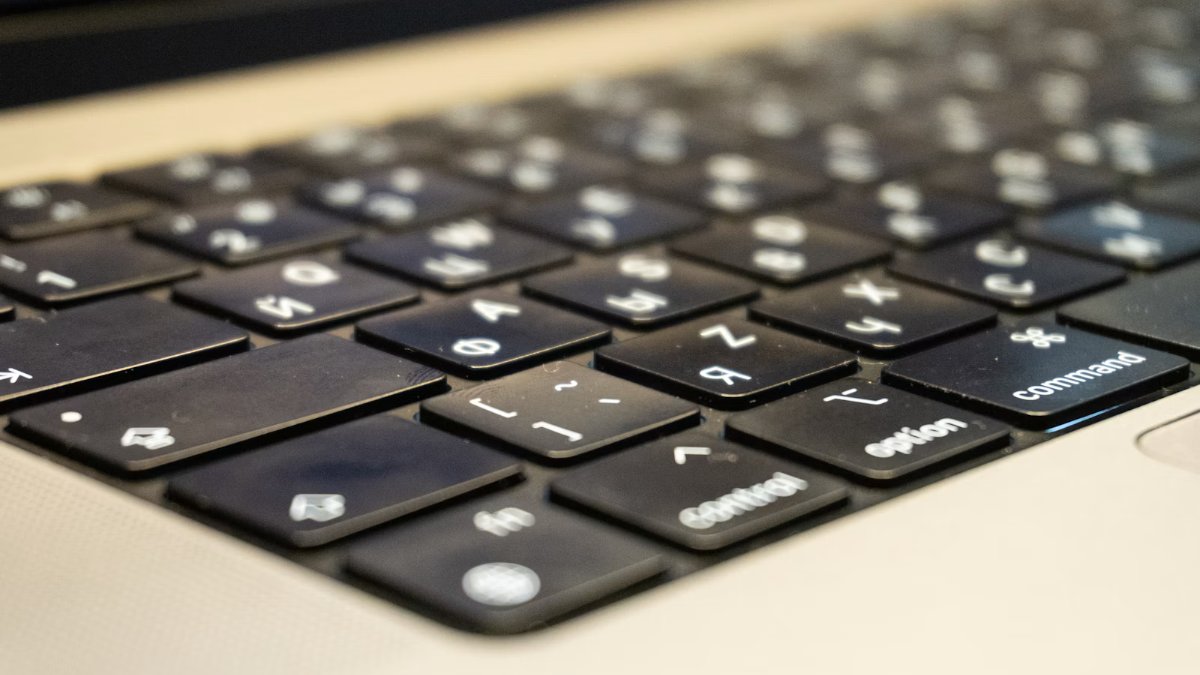
On a MacBook Air or MacBook Pro (Apple):
- Shift + Command + 3: the whole screen.
- Shift + Command + 4: drag to select part of the screen.
- Shift + Command + 4, then Space bar: a single window or menu. Click the window you want.
- Shift + Command + 5: opens the Screenshot app, with all the options and screen recording.
Screenshots are saved to the desktop. To copy one instead of saving it, add Control to the shortcut, for example Control + Shift + Command + 4, then paste with Command + V. You can change where screenshots are saved in the Options menu of the Screenshot app.
Screenshot on a Chromebook
Press the Screenshot key if your Chromebook has one. If not, press Shift + Ctrl + Show windows (the key with stacked rectangles), or open Quick Settings at the bottom right and choose Screen capture. If your external keyboard has no Show windows key, press Ctrl + Shift + F5 (Google).
This opens the screen capture bar at the bottom of the screen. Choose Screenshot, then full screen, part of the screen or one window.
Screenshots go to your Downloads folder unless you choose another folder in the screen capture settings.
Record your screen
- Windows 11: press Windows + Shift + R to record part of the screen with the Snipping Tool (Microsoft). Recordings are saved as MP4 files in Videos, Screen Recordings.
- MacBook: press Shift + Command + 5 and choose to record the whole screen or a selected part (Apple).
- Chromebook: press Shift + Ctrl + Show windows and choose Screen record. Video recordings are saved as .webm files, or .gif if you pick Record GIF.
Where your screenshots go
| Laptop | Shortcut | Saved to |
|---|---|---|
| Windows | Windows + PrtScn | Pictures, Screenshots |
| Windows | Windows + Shift + S (Snipping Tool) | Copied, and on Windows 11 also saved to Pictures, Screenshots |
| Windows | Alt + PrtScn | Copied only. Paste it with Ctrl + V |
| MacBook | Shift + Command + 3, 4 or 5 | Desktop |
| Chromebook | Screenshot key or Shift + Ctrl + Show windows | Downloads |
If OneDrive backs up your Pictures folder, as it does on many new Windows 11 laptops, the Screenshots folder sits inside OneDrive.
For more time-saving keys, see our laptop shortcuts guide.
Quick verdict
- Windows: Windows + Shift + S for part of the screen, Windows + PrtScn to save it all.
- MacBook: Shift + Command + 4 for part, Shift + Command + 3 for the whole screen.
- Chromebook: the Screenshot key, or Shift + Ctrl + Show windows.
- PrtScn doing nothing? Hold Fn.
Laptops in our store
Need a new laptop? Quality Computer sells Windows laptops and MacBooks with warranty. Visit our store in Birtamode, Jhapa or order online for delivery across Nepal, and see our pick of the best laptops under 1 lakh.
| Product | What it is | Our price |
|---|---|---|
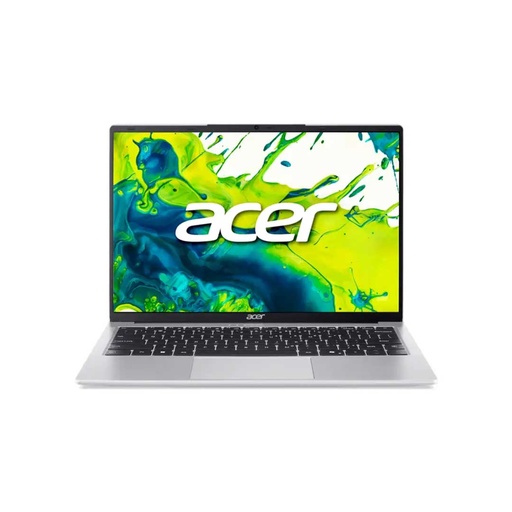
| Acer Aspire Lite 14 (Ryzen 3) | 14-inch, Ryzen 3, 8GB RAM, 512GB SSD | Rs 72,900 |
| Asus Vivobook Go 15 (Ryzen 5) | 15.6-inch, Ryzen 5, 8GB RAM | Rs 89,900 |
| Dell 15 DC15250 (Core i5) | 15.6-inch, Core i5 | Rs 93,900 |
| Acer Aspire 5 15 (Core i5, touchscreen) | 15.6-inch touchscreen, Core i5 H-series | Rs 99,900 |
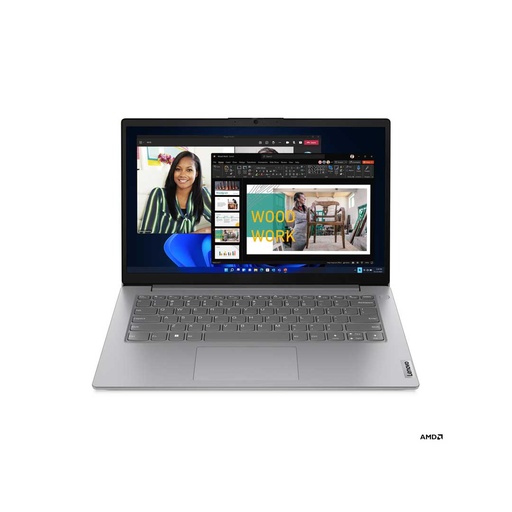
| Lenovo V14 G4 AMN (Ryzen 5, 16GB) | 14-inch, Ryzen 5, 16GB RAM | Rs 1,05,900 |
| MacBook Neo 13-inch (8GB, 256GB) | Apple A18 Pro, 8GB, 256GB | Rs 1,35,000 |
| MacBook Air M5 13-inch (16GB, 512GB) | Apple M5, 16GB, 512GB | Rs 2,48,500 |
| Havit MS78GT wireless mouse | Wireless mouse | Rs 850 |
| Logitech K120 USB keyboard | Full-size USB keyboard | Rs 1,630 |
Prices checked on 12 November 2026 on our website.
In our store
Acer Aspire Lite 14
Lenovo V14 G4 AMN
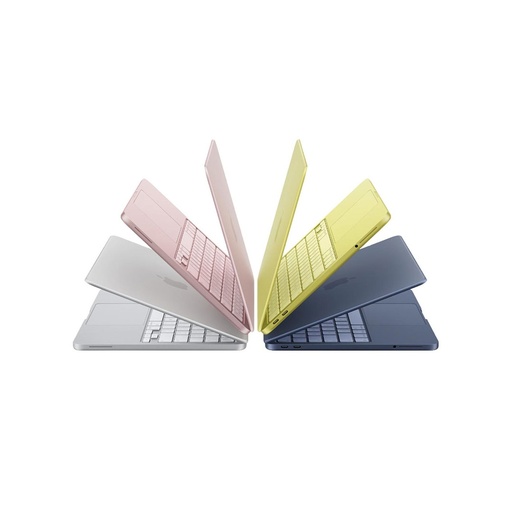
MacBook Neo
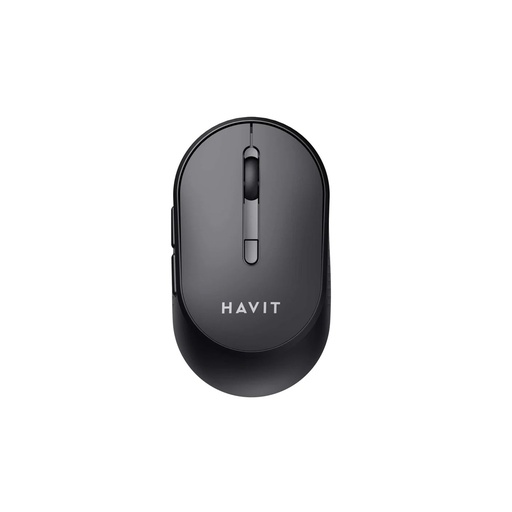
Havit wireless mouse
Frequently asked questions
What is the shortcut for a screenshot on a laptop?
On Windows, press Windows + Shift + S, or Windows + PrtScn to save the whole screen. On a MacBook, press Shift + Command + 4 or Shift + Command + 3.
Where do screenshots go on Windows?
Windows + PrtScn saves them to Pictures, Screenshots. On Windows 11, the Snipping Tool also saves its screenshots there.
Why does PrtScn open the Snipping Tool?
Recent versions of Windows 11 set it that way. You can change it in Settings, under Accessibility, Keyboard, or on newer updates Bluetooth & devices, Keyboard.
How do I take a screenshot on a MacBook?
Press Shift + Command + 3 for the whole screen or Shift + Command + 4 to select part of it. Screenshots are saved to the desktop.
How do I take a screenshot on a Chromebook?
Press the Screenshot key, or Shift + Ctrl + Show windows, then choose Screenshot and the area. Screenshots go to Downloads.
How do I screenshot only one window?
On Windows, press Alt + PrtScn and paste it. On a MacBook, press Shift + Command + 4, then the Space bar, and click the window.
Sources
- Keyboard shortcuts in Windows, Microsoft Support
- Use Snipping Tool to capture screenshots, Microsoft Support
- Take a screenshot on Mac, Apple Support
- Take a screenshot or record your screen, Chromebook Help
- How to record the screen on your Mac, Apple Support