How to Check RAM in a Laptop (and Whether You Can Upgrade It)
Short answer: To check how much RAM is in a laptop running Windows 11, right-click Start and open Settings, System, About. The amount of RAM installed and the processor are listed under Device specifications, and the model name sits just below the device name. On a MacBook, open Activity Monitor and click Memory: Physical Memory is the amount of RAM installed. To find out if the RAM can be upgraded, look up that exact model on the maker's spec sheet: "soldered, no slots" means no, while a free SO-DIMM slot means you can add a module of the same type, because DDR4 and DDR5 don't mix.
Shop at Quality Computer
Laptop RAM and SSDs View all →
How to check RAM in a laptop with Windows 11
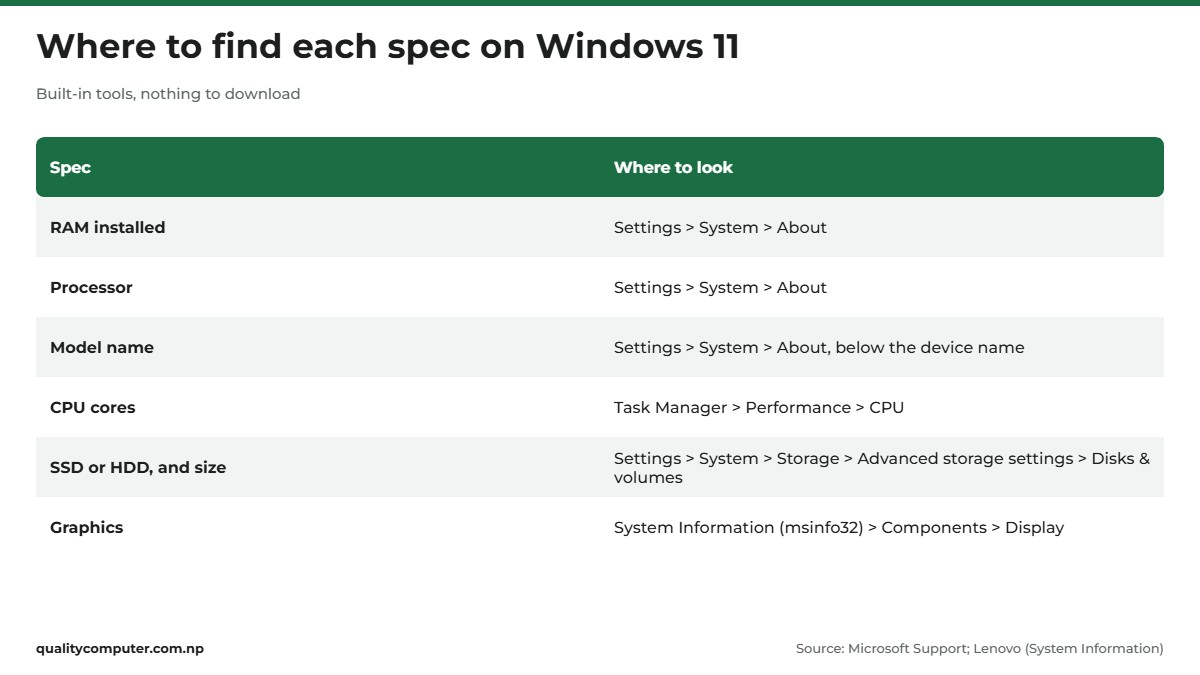
Every Windows 11 laptop, whether it's HP, Dell, Lenovo, Asus or Acer, keeps its basic specs on one Settings page (Microsoft):
- Right-click the Start button and choose Settings.
- Select System, then About.
- Look under Device specifications. It shows the amount of RAM installed, the processor, and whether Windows is 32-bit or 64-bit.
The same page answers the question you'll need later: which laptop is this? The device name is at the top, and the model name is displayed just below it. Take a photo of it with your phone.
This is also how to find laptop RAM details on a second-hand laptop before you pay for it: open the page yourself rather than relying on the listing or the box.
See how much RAM you're using in Task Manager
Settings tells you how much RAM you have. Task Manager shows how much of it is in use right now. Press Ctrl + Shift + Esc, or right-click Start and choose Task Manager (Microsoft). Our laptop shortcuts guide covers more everyday shortcuts, such as screenshots and screen recording.
Open Performance from the left pane. It gives real-time data on CPU, memory and disk use. Leave it open while you work as you normally do, with your usual browser tabs and apps. If memory stays close to full most of the time, that's your sign to check whether the laptop can take more.
Get the full list with System Information
For the most detail, press Windows key + R, type msinfo32 and press Enter. You can also search for System Information in the Start menu. Microsoft describes it as a comprehensive view of the hardware, system components, and software, and it works on Windows 11 and Windows 10.
The System Summary page lists your processor and memory. The Components section breaks out storage, display and other hardware (Lenovo).
How much RAM does a laptop need?
Once you know how to check RAM in a laptop, the next question is whether you have enough. Microsoft's guidance is simple:
- At least 4GB if you mainly browse the web, work on documents or stream videos.
- 8GB is what Microsoft recommends "to keep your device running long term".
- 16GB or more if you edit photos and videos or run other demanding work.
If Settings shows 4GB and Task Manager shows memory near full in normal use, don't buy a new laptop yet. First check whether yours has a free memory slot. The rest of this guide shows you how.

Check your storage: SSD or HDD, and how big
RAM is the laptop's working memory. Storage is where Windows, your apps and your files live, and it's a separate part. To see how big your drive is and what kind it is (Microsoft):
- Open Settings, System, Storage.
- Scroll to Advanced storage settings and open Disks & volumes.
- Each drive shows its disk type (SSD or HDD), its capacity and how much is used.
If your laptop has more than one drive, Storage used on other drives, also under Advanced storage settings, shows them all together. In System Information, Components, Storage shows each drive's model, capacity and connection.
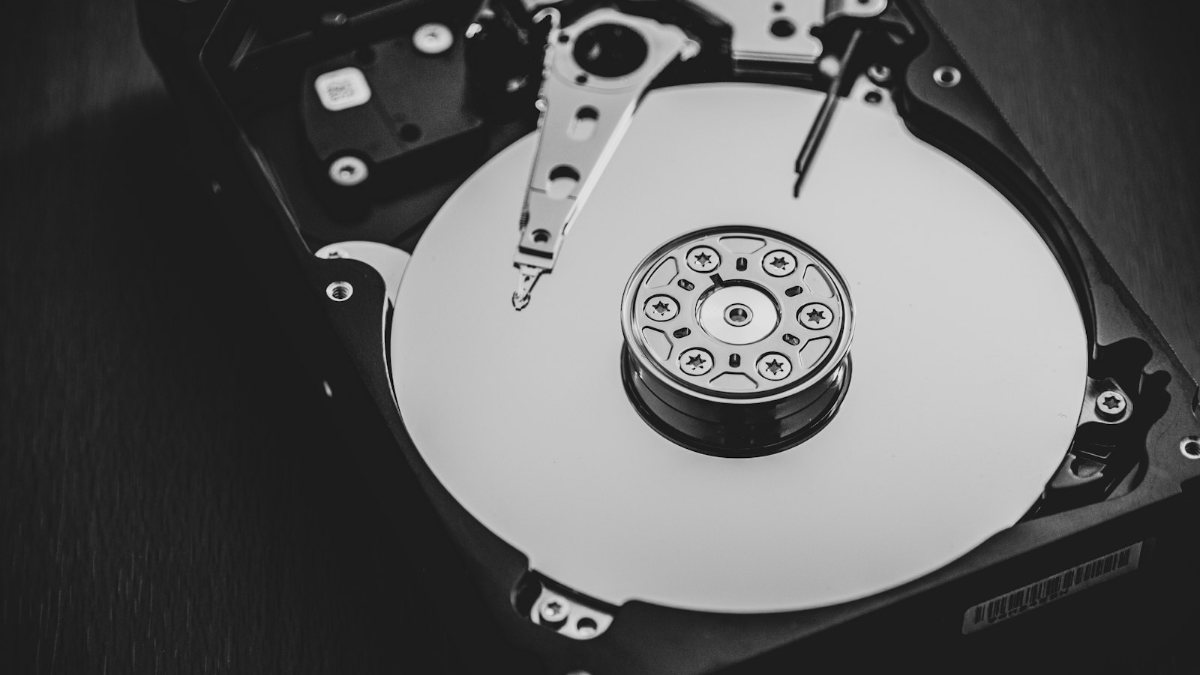
Microsoft notes that SSDs are smaller and faster than hard disk drives, and that HDDs are more common in older devices. If yours still shows HDD, read our SSD vs HDD comparison before you decide what to upgrade first.
Check the processor and graphics
The processor is on the same Settings, System, About page, under Device specifications. To see how many cores it has, open Task Manager, choose Performance from the left pane and select CPU. The numbers are listed next to Cores and Logical processors (Microsoft).
For graphics, open System Information (msinfo32), expand Components and select Display. It shows the graphics model name and the driver version.
Don't worry if a laptop lists two graphics chips. Microsoft explains that Windows laptops can have discrete GPUs directly on the motherboard, often in addition to the integrated GPU.
Put these together and you have the answer to how to check laptop specs on any Windows machine: RAM, storage, processor and graphics, all from built-in tools, with nothing to download.
How to check RAM and specs on a MacBook
On a MacBook Air or MacBook Pro, these are the places to look:
- RAM: open the Activity Monitor app and click Memory. At the bottom of the window, Physical Memory is the amount of RAM installed, and Memory Pressure shows how efficiently that memory is serving what you're doing (Apple).
- Model, memory and serial number: choose Apple menu, About This Mac. The window shows your model name, the chip, the total memory (RAM) and the serial number (Apple).
- Full hardware report: go to System Settings, General, About and click System Report, or hold the Option key and choose Apple menu, System Information (Apple). Select Hardware in the sidebar for the model identifier and model number.
- Storage: on macOS Ventura 13 or later, choose Apple menu, System Settings, General, Storage. On older versions it's About This Mac, Storage (Apple).

With the model name, open Apple's Tech Specs page for that model to see its memory and storage options. For the 13-inch MacBook Air (M5), Apple lists "16GB unified memory", configurable to 24GB or 32GB, and a 512GB SSD, configurable to 1TB, 2TB or 4TB.
Treat those as choices to make on the day you buy. The Apple pages we checked describe configuration options, not a way to add memory to a current MacBook later.
Find your laptop's exact model number
To know whether your RAM or SSD can be upgraded, you need the full model name, not just the series. A series name such as IdeaPad, Vivobook or Inspiron covers many different laptops. A full model name, such as Lenovo V14 G4 AMN, points to one spec sheet.
- In Windows: Settings, System, About. The model name is just below the device name.
- On the laptop: the model number is usually printed on the underside or back. Dell puts the Service Tag on the bottom cover, and you can also read it from the BIOS, Command Prompt, PowerShell or SupportAssist (Dell). On a MacBook, the serial number is usually printed on the underside, near the regulatory markings.
- Paperwork: the product documentation, or the listing you bought from, should show the original configuration.
Then look the model up on the maker's own site, not a shop listing. Lenovo's PSREF (Product Specifications Reference) has a spec sheet for each model. Dell's support site identifies your laptop from its Service Tag. For other brands, search the maker's support site for the full model name.
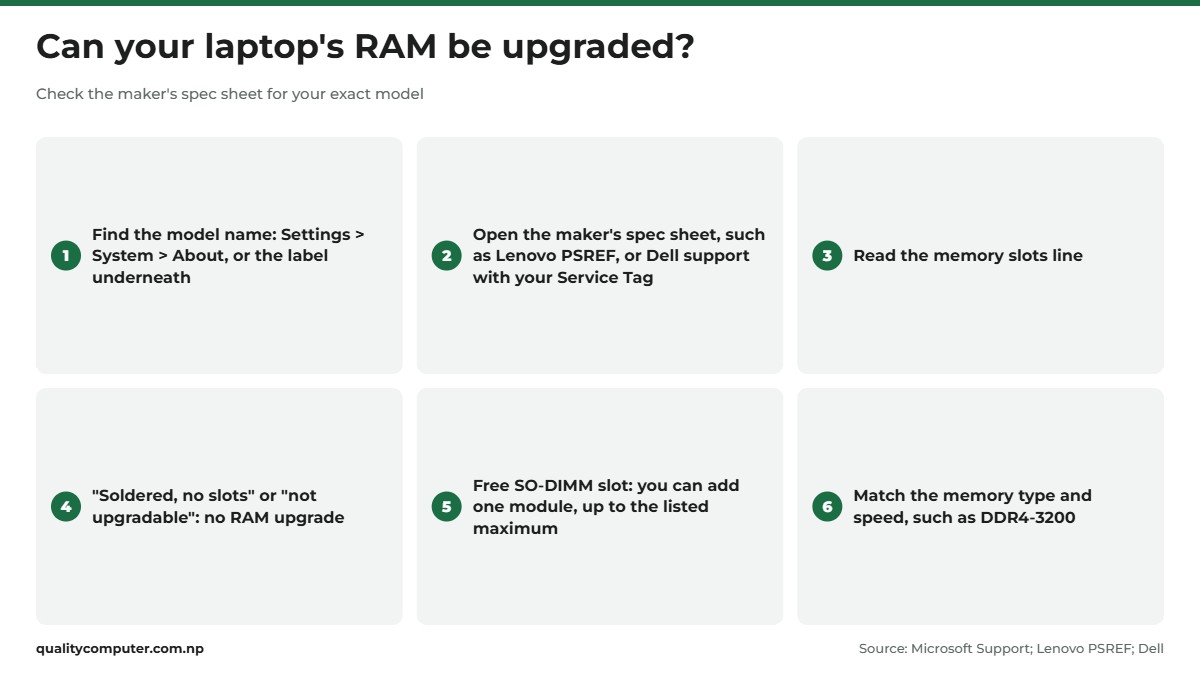
Can your laptop's RAM be upgraded? Soldered vs SO-DIMM
Laptop RAM comes in two forms. Some laptops use SO-DIMM modules, small memory sticks that sit in a slot and can be swapped. Others have soldered or non-user-replaceable memory fixed to the motherboard. Some have both: part of the RAM soldered on, plus one slot.
The memory lines on the spec sheet tell you which you have. Here's what the wording means, with real examples from Lenovo's PSREF:
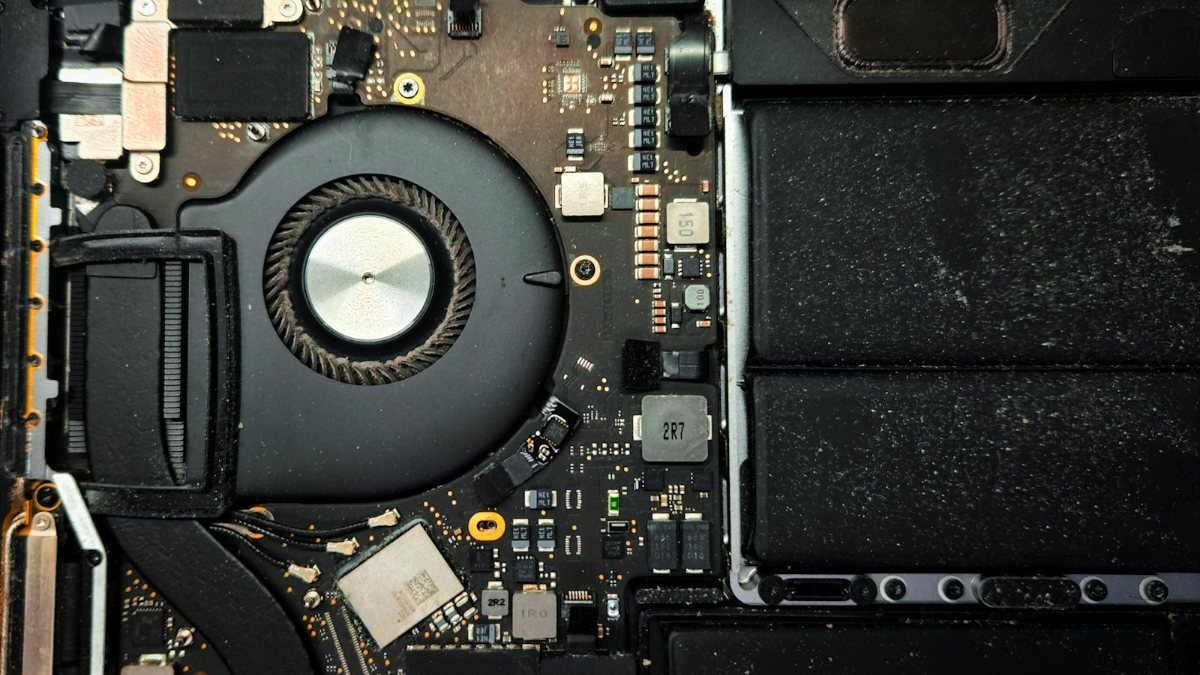
- "Soldered, no slots" or "not upgradable": the RAM you bought is the RAM you keep. The Lenovo V14 G4 AMN sheet says "Memory soldered to systemboard, no slots", with LPDDR5-5500 memory in 8GB or 16GB, both marked "not upgradable".
- "Soldered + SO-DIMM slot": the slot takes one module, so you can add one or swap the one that's there. The ThinkPad E14 Gen 5 (Intel) has "One memory soldered to systemboard, one DDR4 SO-DIMM slot", for up to 40GB (8GB soldered + 32GB SO-DIMM) of DDR4-3200 on versions with 8GB soldered.
- "Empty SODIMM slot": the slot is free, but read the maximum on the same line. One configuration of the Lenovo V15 G4 IRU is listed as "Up to 16GB (16GB soldered + empty SODIMM slot)", so Lenovo's stated maximum for that version is the 16GB it already has.
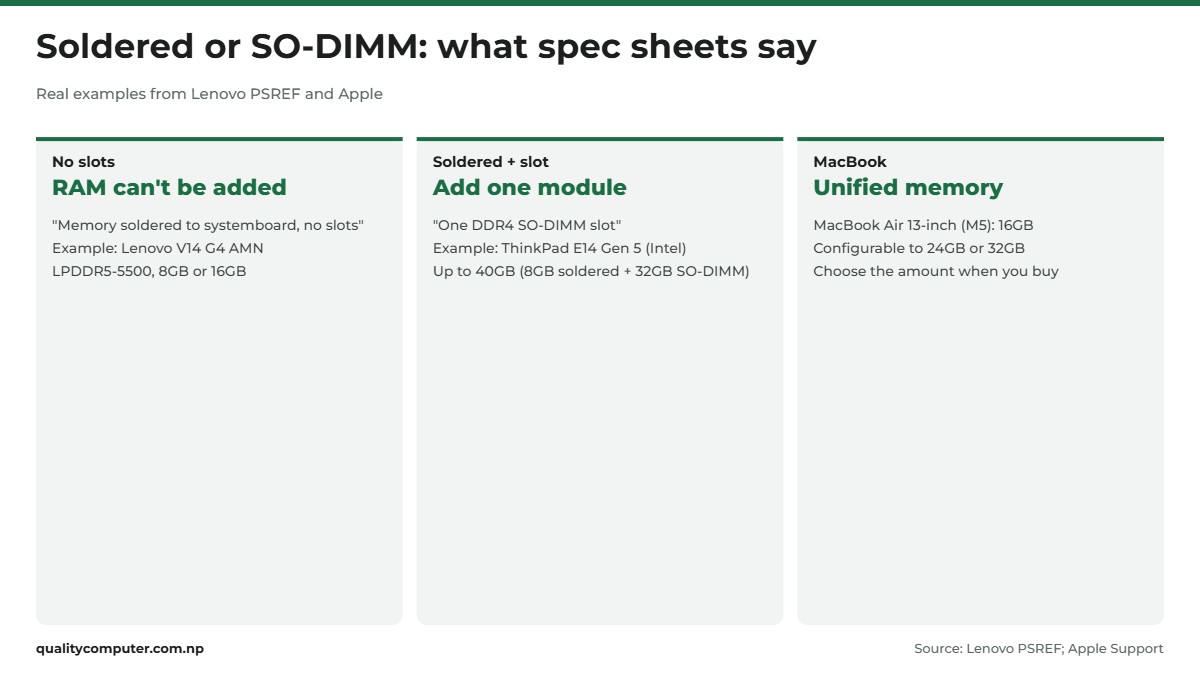
If your sheet says soldered with no slots, Lenovo's advice applies: soldered memory cannot be upgraded after purchase, so pick a capacity that covers what you need now and in the near future.
Two more details on the sheet are worth reading. The maximum memory figure is based on the modules the maker has tested; Lenovo says so in a footnote, so confirm the maximum before you buy. And a second module can do more than add space. On the V15 G4 IRU, Lenovo says Intel Iris Xe graphics needs dual-channel memory, and with single-channel memory the graphics "will function as Intel UHD Graphics".
DDR4 and DDR5 don't mix: match the type
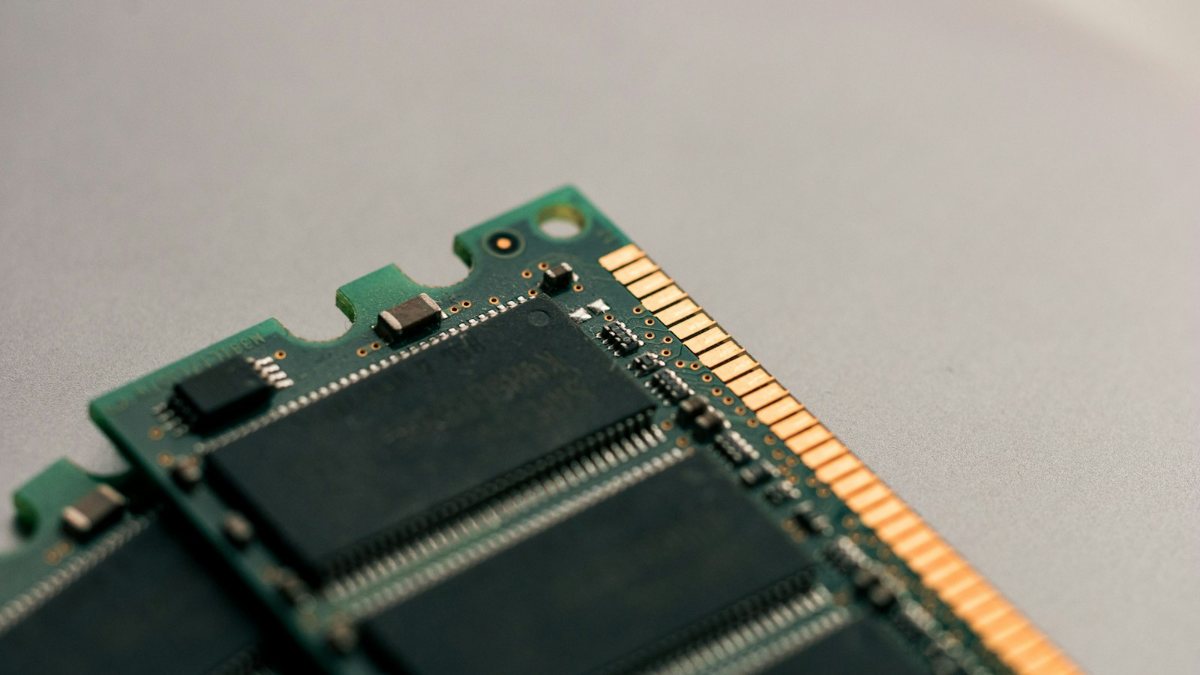
If your laptop has a slot, the new module has to be the type the laptop supports. Kingston, the memory maker, explains that DDR5 modules look similar to DDR4 but have "significant changes that make them incompatible with legacy systems". The notch on the module works as a key and sits in a different place, so DDR4 and DDR5 modules won't fit each other's sockets.
So before you buy, get these from your model's spec sheet:
- Memory type and speed, for example DDR4-3200.
- Form factor: SO-DIMM for laptops with a slot.
- The supported maximum.
Lenovo's own advice is to check "the supported memory type, form factor, capacity, data rate, voltage, and configuration" in your device's documentation. It also says support for modules of different sizes "varies by device", so a 16GB module next to 8GB soldered RAM isn't guaranteed to work on every model.
For DDR4 and DDR5 laptop RAM and current prices, see our guide to which RAM fits your laptop.
Before you open the laptop
Lenovo's steps start with: shut the computer down and disconnect external power. Then follow your maker's instructions for the internal battery and its anti-static precautions. If you're not comfortable doing that, ask a technician to fit it.
Can you upgrade the SSD too?
Storage works the same way: the spec sheet's storage lines tell you how many drives fit and which kind. Look for three things.
- The number of drives. The Lenovo V14 G4 AMN supports one drive, "up to 1TB M.2 2242 SSD". The ThinkPad E14 Gen 5 (Intel) has two M.2 slots.
- The slot type. The V14 G4 AMN has "One M.2 2242 PCIe 3.0 x2 slot". The 45Wh-battery versions of the V15 G4 IRU have "One M.2 2280 PCIe 4.0 x4 slot". Buy the size and type your sheet lists.
- Your exact configuration. On the V15 G4 IRU, models with the 38Wh battery take a 2.5-inch HDD plus an M.2 SSD, while 45Wh models take one M.2 SSD. Same model name, different insides, which is why the spec sheet matters more than the series name.
When you know the size and type your slot takes, our SATA vs NVMe SSD guide explains the drive types and lists prices in Nepal.
Quick verdict
- Windows 11: Settings, System, About shows your RAM, processor and model name.
- SSD or HDD: Settings, System, Storage, Advanced storage settings, Disks & volumes.
- MacBook: Activity Monitor, Memory shows Physical Memory; About This Mac gives the model.
- Upgradable? Check the maker's spec sheet: "soldered, no slots" means no.
- Got a slot? Match the type and speed. DDR4 and DDR5 don't mix.
Laptop RAM and SSDs in our store
Once you know your memory type and speed and the SSD size your slot takes, you can pick an upgrade that fits. Here are laptop RAM modules and SSDs from our range.
| Product | What it is | Our price |
|---|---|---|
| TRM 8GB DDR4 laptop RAM (3200MHz) | 8GB DDR4 SO-DIMM laptop RAM | Rs 8,500 |
| Transcend 16GB DDR4 laptop RAM (3200MHz) | 16GB DDR4 SO-DIMM laptop RAM | Rs 19,900 |
| Lexar NM620 256GB M.2 2280 NVMe SSD | 256GB M.2 2280 NVMe SSD | Rs 8,900 |
| Lexar LNS100 256GB 2.5-inch SATA SSD | 256GB 2.5-inch SATA SSD | Rs 7,500 |
| Dahua C900 Plus 1TB M.2 2280 NVMe SSD | 1TB M.2 2280 NVMe SSD | Rs 22,500 |
Prices checked on 14 November 2026 on our website.
In our store
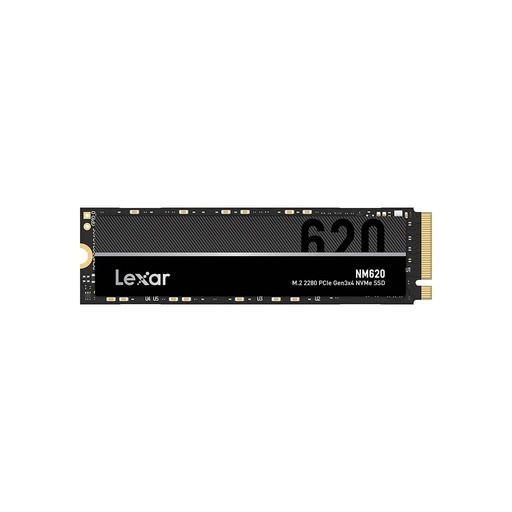
Lexar NM620 256GB
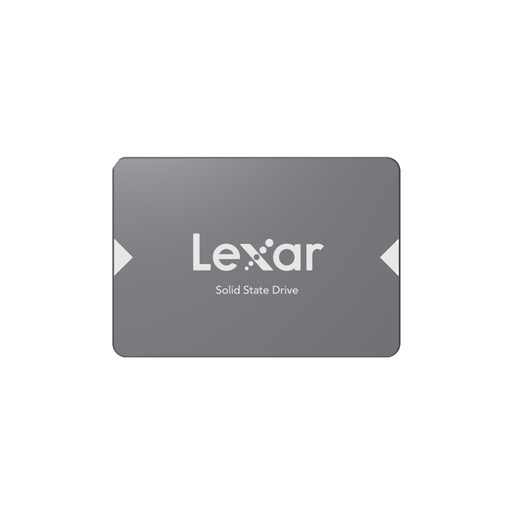
Lexar LNS100 256GB
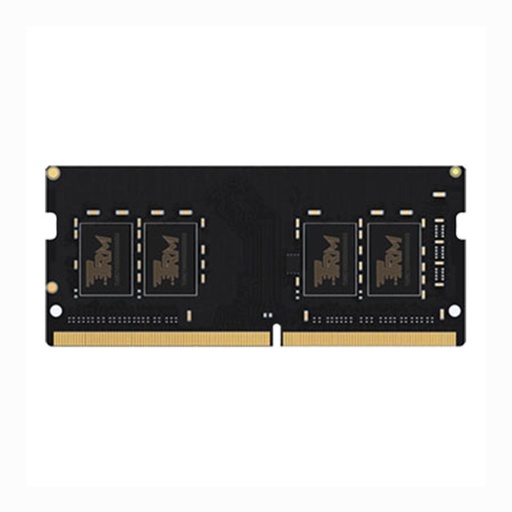
TRM 8GB DDR4
Frequently asked questions
How to check RAM in laptop on Windows 11 or a Mac?
On Windows 11, right-click Start, open Settings, then System, About. The amount of RAM installed is listed under Device specifications. On a Mac, open Activity Monitor and click Memory; Physical Memory is the amount of RAM installed.
How to know if my laptop RAM can be upgraded?
Find the exact model name in Settings, System, About or on the label underneath, then read the memory lines on the maker's spec sheet. Soldered memory with no slots can't be upgraded; a free SO-DIMM slot means you can add a module, up to the maximum the sheet lists.
How to find RAM type in laptop, DDR4 or DDR5?
Look up your exact model on the maker's spec sheet, such as Lenovo PSREF. It lists the memory type and speed, for example DDR4-3200 or LPDDR5-5500, and how many memory slots it has.
Can I use DDR5 RAM in a DDR4 laptop?
No. Kingston explains that the notch on a DDR5 module sits in a different place from DDR4, so the two won't fit each other's sockets. Buy the type your laptop's spec sheet lists.
How to check laptop specs and model number?
On Windows 11, Settings, System, About shows the processor, RAM and model name. For more detail, press Windows key + R and run msinfo32. The model number is also usually printed on the underside of the laptop.
How to check if my laptop has an SSD or HDD?
Open Settings, System, Storage, then Advanced storage settings and Disks & volumes. Each drive shows its disk type, SSD or HDD, and its capacity.
How much RAM is enough for a laptop?
Microsoft suggests at least 4GB for web browsing, documents and streaming, 8GB to keep a laptop running well long term, and 16GB or more for photo and video editing.
Sources
- Find information about your Windows device, Microsoft Support
- Which version of Windows operating system am I running?, Microsoft Support
- System configuration tools in Windows, Microsoft Support
- Find out how many cores a processor on a Windows device has, Microsoft Support
- Storage settings in Windows, Microsoft Support
- All about computer memory, Microsoft Support
- All about SSD, HDD, and storage types, Microsoft Support
- All about graphics processing units (GPUs), Microsoft Support
- msinfo32, Microsoft Learn
- Find your Mac model name and serial number, Apple Support
- Get system information about your Mac, Apple Support
- View memory usage in Activity Monitor on Mac, Apple Support
- Free up storage space on Mac, Apple Support
- MacBook Air (13-inch, M5) - Tech Specs, Apple Support
- Lenovo V14 G4 AMN PSREF Product Specifications Reference, Lenovo, 26 October 2026
- ThinkPad E14 Gen 5 (Intel) PSREF Product Specifications Reference, Lenovo, 6 August 2025
- Lenovo V15 G4 IRU PSREF Product Specifications Reference, Lenovo, 18 November 2025
- How to Install RAM, Lenovo
- How Much Do I Really Need for Optimal Laptop Performance?, Lenovo
- What is System Information and What can You Do with It?, Lenovo
- What is a Model Number?, Lenovo
- Find your Service Tag or Serial Number, Dell
- Kingston ValueRAM and Kingston FURY Beast DDR5 memory modules, Kingston